The manual
Every button, every window and every key, with pictures of the real console. Read it in order the first time; after that, use your browser's find.
01
Getting started
From a download to a cue firing, in about five minutes.
- 1
Install it
Open the disk image and drag CueMonkey to Applications. It needs macOS 12 Monterey or later, and the one copy runs on Apple Silicon and on Intel. A Mac on 10.15 or 11 should stay on 0.1.8. It is signed and notarised by Apple, so it opens like any other app: no right clicking, no trip into Security settings. It opens in your Mac's language when that is one of the eight it speaks, and in English otherwise; Language, in Settings, changes it.
- 2
Sign in
Press Sign in at the foot of the column down the left, choose Sign in from the menu, then Google. Your own browser opens and comes back. CueMonkey never sees a password, and an account is free. Signing in with Apple is coming soon: until Apple is connected, its button opens a page that says so and offers Google instead.
- 3
Add something
Press Add cue and choose sounds, videos or pictures, any of them at once, or drag them onto the console from the Finder. Each lands at the end of the running order, named after its file. A big film takes a moment to come in, and its cue is there from the first second, saying how far it has got.
- 4
Mark the projector
If the show has anything to look at, open Screen settings, pick the projector and mark it For the audience. It goes black the moment you mark it, and from then on it is covered whenever CueMonkey is open, black until something is put on it, so the house does not see this Mac's desktop. Until a screen is marked the show stays off it, and a picture with nowhere to go plays in a small window on the console's own screen, where only you can see it.
- 5
Press the space bar
Space is GO: it fires the next cue. Press it again for the one after. That is the whole of running a show.
Signing in is what lets you build shows and save them. Opening a show somebody sent you and running it never needs an account, and never will: a licence in this app cannot stop a cue from firing.
02
The window
Five parts, and each of them stays where it is all evening.
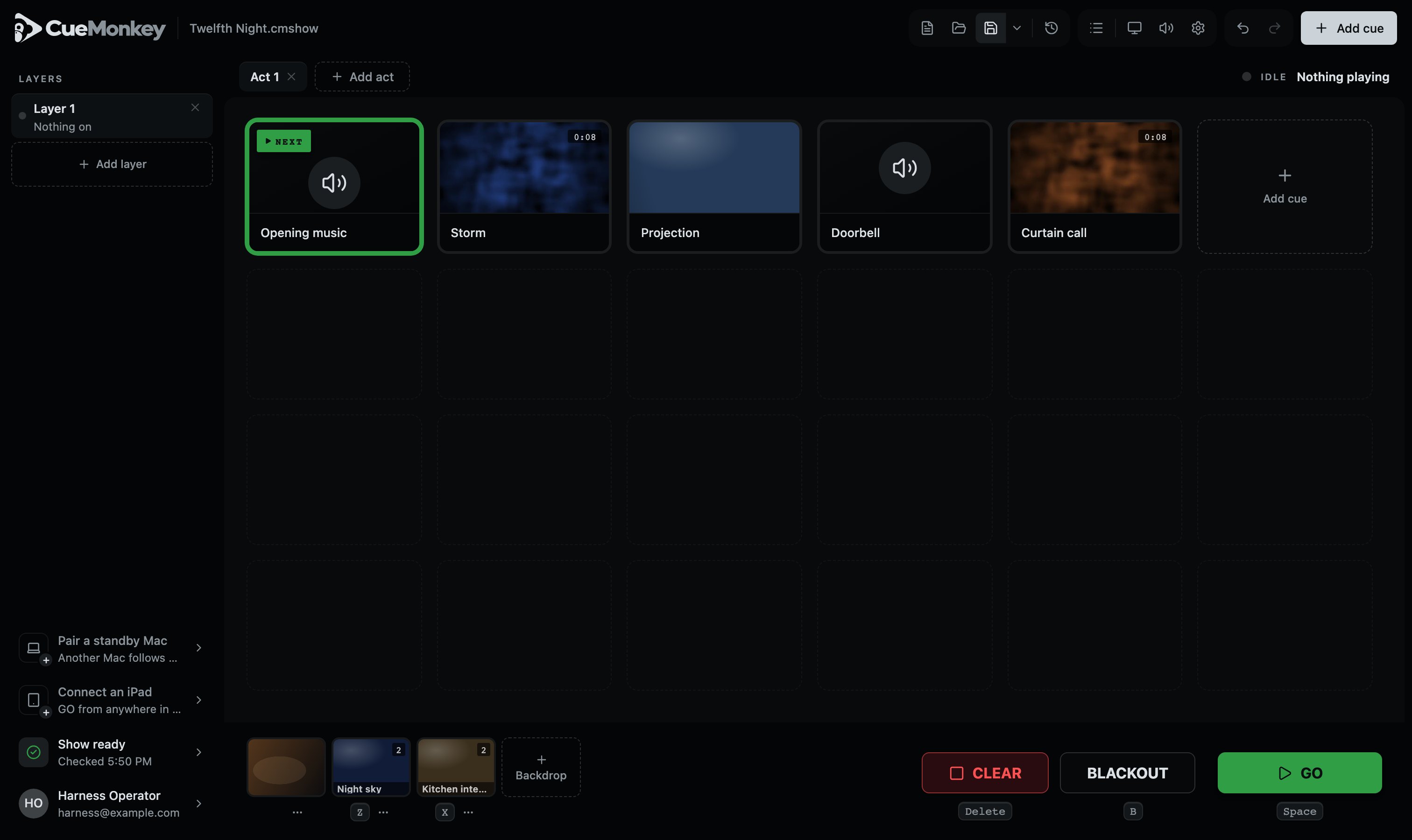
- 1The show's name. A dot beside it means there are changes you have not saved.
- 2The tools: new, open, save and earlier versions; the list or the pictures; screens, sound and settings; undo and redo; and Add cue.
- 3Acts. A show can be one, or one per act, or one per scene.
- 4What is on stage right now: LIVE and the cue, or each layer and its cue when more than one is on, with held after one that is held. HELD once everything on is held, and IDLE and Nothing playing when nothing is. When a cue is about to start the next one by itself, or an act has reached its end, it says what comes next. In show mode, Leave show mode stands at its end.
- 5Layers: running orders side by side. The lit one is the one in the grid.
- 6The check before the house opens: one mark for all of it, the worst of what it found. It looks again by itself, and once a show is on it says Show mode.
- 7Whose console this is. Press it for your account, this manual and the keys.
- 8The running order of the layer on screen. Cues fire from here, left to right, top to bottom.
- 9Backdrops and the camera: the pictures that stay up between cues.
- 10The transport: CLEAR, BLACKOUT and GO, with the key that fires each printed under it.
Nothing in this window moves under your hand during a show. Notices float over the running order rather than pushing it down, and the player opens on top of the grid rather than between it and the transport. The cue you are reaching for is where it was a second ago, and so are Clear and Blackout: the transport never changes its width, whatever the layer GO fires is called.
GO keeps the next cue in sight. In an act longer than the screen, the running order scrolls as little as it takes to show the cue GO has just armed, at once and above the player when the player is open, and so does anything else that arms a cue: the arrows, a typed number, another act. A show that fits the screen never moves, a click never scrolls it, and nothing moves it while your hand is on it.
A Mac hides its scroll bars until something scrolls, so anything with more in it than fits says so another way: a list, a window, the column down the left, the acts and the backdrop strip fade out at the edge that has more past it, and only at that edge.
While a show is being built, a control explains itself in a line or two when the pointer rests on it. Once a show is on, nothing does: an explanation is a box over the running order wherever a hand happens to rest.
What the console has to say it says at the top of the running order, never at the foot, which is where GO, Clear and Blackout are. Anything wrong about tonight is a notice, a screen that has stopped answering or a file that will not play, and it stays until it is no longer true or you press Dismiss beside it; one about a screen cannot be put away. Something you have just done gets a receipt under the notices instead: one at a time, in one place, gone after a moment or at a press of its cross. A receipt can say what comes next on a second line, with the key drawn as a key: a cue deleted says ⌘Z puts it back, and copied settings say where they came from and that ⌘V puts them on another cue.
Anything the console is doing that takes a while wears a level meter: four bars in a square, like the meter on a sound desk. When nobody can say how far in it is, the bars rise and fall from left to right, a little under a second a lap: the check looking at a line, the camera window looking for cameras, the trim reading its file, a new version being put in. When the console can say, the same four bars stand still and light from left to right as the work goes, each whole before the next starts, with the number beside it: a new version coming down, every cue being measured again in Sound settings. While it is not full, the bar that is filling breathes, so a copy that sits on one number for a while still looks like work going on, and once it is full nothing moves. The one exception is a file becoming a cue: on its tile in the running order and on a backdrop's card it wears the CueMonkey mark instead, filling from its foot with the number beside it, or with a light running round its outline while a convert cannot yet say how long it will take. On a Mac set to reduce motion, nothing moves but how far it has got.
03
Cues
A cue is one thing that happens: a sound, a video, or a picture.
Add one with the Add cue button, by pressing the first empty slot in the grid, or by dragging files onto the console from the Finder. You can bring in several at once and they arrive in the order you picked them, each named after its file, at the end of the running order of the act and the layer on screen. Drag a tile by its grip, in the bottom left corner of its picture, which shows when the pointer is on the tile. The running order is the order they fire in.
While you hold files over the console it says what letting go would do, "Let go to add 3 cues to Act 1." Anything it cannot take, a PDF or a folder, is named and left where it was. Let go over the backdrop strip and pictures and videos become backdrops; a sound is never a backdrop, so it goes into the running order instead, and the receipt says so. A show file dropped on its own is opened, and asks first if there is anything to lose.
Every file is copied into the show as it comes in, and anything in a format that cannot be played live is converted on the way. Whether a sound can be played live is asked of the sound engine itself. A sound with more than two channels, such as a 5.1 mix, is folded into stereo as it comes in, the way a film is mixed down for a pair of speakers: the centre goes to both sides, each surround to its own side, and the sub is left out. The copy CueMonkey keeps is that stereo file, and the one on your disk is not touched. It comes in quieter than its front channels, so that no part of it can clip, and evening out brings it back to where the rest of the show sits. A two gigabyte film takes about a minute of that, and the console carries on working through it: the cue is in the grid from the moment you pick the file, saying WAITING, COPYING or CONVERTING and how far it has got, in a number and in the CueMonkey mark filling up where the picture will be. The cross on it calls that file off and keeps nothing. It becomes an ordinary cue the moment its file has landed.
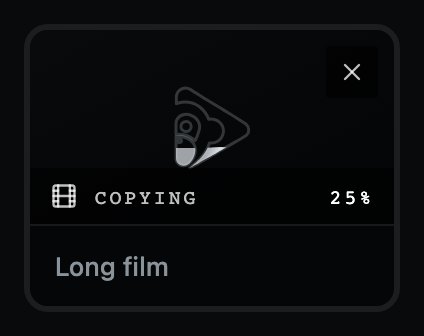
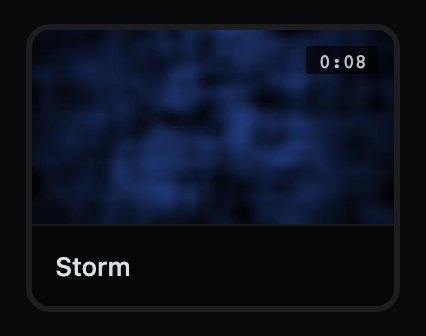
- 1What it is: a picture or a frame of the video, or a speaker for a sound. Across its top, what the cue is doing on the left and its length on the right, with scissors beside it when it is trimmed.
- 2Its name. Click it to select the cue; double click to rename it.
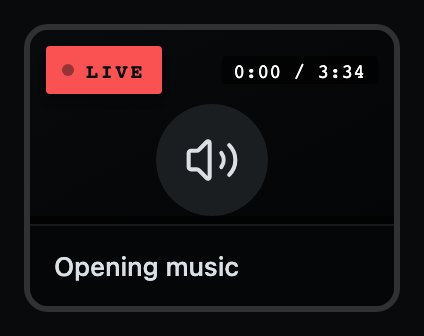
- 1LIVE: this is sounding or on a screen right now. Held in the player, it says HELD in the same red, and its dot stops pulsing. Under Blackout a picture's tile is covered and says BLACKED OUT, and under that whether it is still playing or held.
- 2How far in it is, and how long it runs. Short of room, the length gives way and how far in it is stays.
A green outline and the word NEXT mean a cue is armed: it is the one Space will fire. Selecting a cue arms it, so you can jump anywhere in the running order by clicking a tile and pressing GO. A double click on a cue fires it there and then. A double click on its name renames it, and a double click on any control on it, its grip or one of its buttons, fires nothing.
A cue that cannot play says so on its tile, in words: FILE MISSING, NO FILE, CAN'T BE READ or FILE IS EMPTY, with what to do about it when you rest the pointer there. One whose file is still coming out of a show file you have just opened says Unpacking over its picture, and plays the moment its file is out.
Every film has its sound taken out of it once on this Mac, into a file of its own that the show plays alongside the picture. It happens in the background, in running order, after a film comes in, comes out of a show file or is put in with Replace the file…, and takes a second or two a film. The film itself is only read, never changed, and the show file does not change either: another Mac makes its own. While a film's sound is being made its tile, its row in the list and its backdrop card say Getting its sound, and GO on it plays nothing and says the film is still getting its sound ready, and will be ready in a moment. So does a backdrop put up by hand. A film whose sound cannot be read plays without it, and the check before the house opens names it.
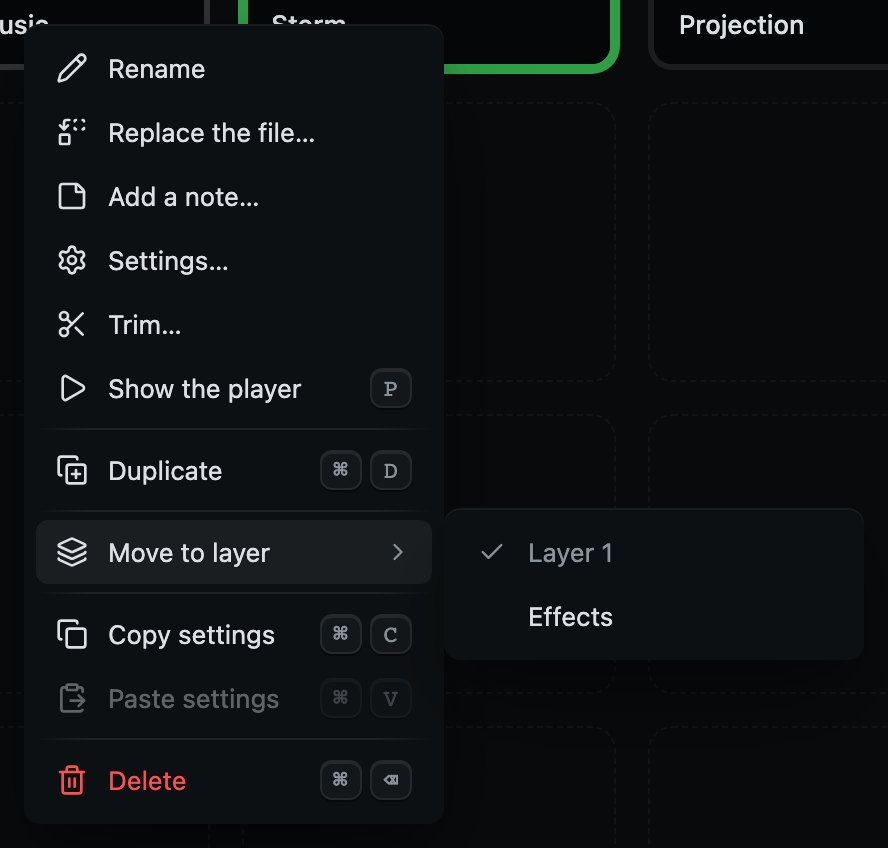
Everything you can do to one cue is on its own menu, which opens with the right mouse button, or with two fingers on a trackpad. The key beside a line does the same thing without the menu. The whole of it, in order: Rename, Replace the file…, Add a note… (Note… once it has one), Settings…, Trim…, Show the player, Duplicate, Move to layer, Move to act, Copy settings, Paste settings and Delete. Trim and the player are there only for something with a length, and the two moves only when there is somewhere else to go. Once a show is on, the menu stops printing S, T and N, because those keys open nothing then, and the menu is the way in.
Copy settings and Paste settings carry how a cue plays: its volume, its fades and, on a sound, their shape, its kind, its trim, whether it loops, Mute and Black & white on a video, and Leave this cue alone. They carry decisions, never measurements, so a loudness measured on one recording never lands on another. Not its file, its name, its note, what follows it, the screen it plays on or what its screen falls back to, and only onto a cue of the same kind: a sound's settings will not go onto a film, and the console says so.
A show too long to read as pictures can be read as a list: Show as a list, in the toolbar. It is the same running order, a line for each cue with its screen, its fades, its length and its note. The grip that moves a cue comes first on its row, before the number, and everything the cue can do is on the same menu there, from the right mouse button on a row or the button at the end of it. A cue that is on carries the same plate on its row as on its tile, LIVE, HELD, or BLACKED OUT for a picture under Blackout, and nothing else: the one row lit is the next one, in GO's green. A double click on a row fires the cue the way it does on a tile, and a double click on its grip or one of its buttons does not.
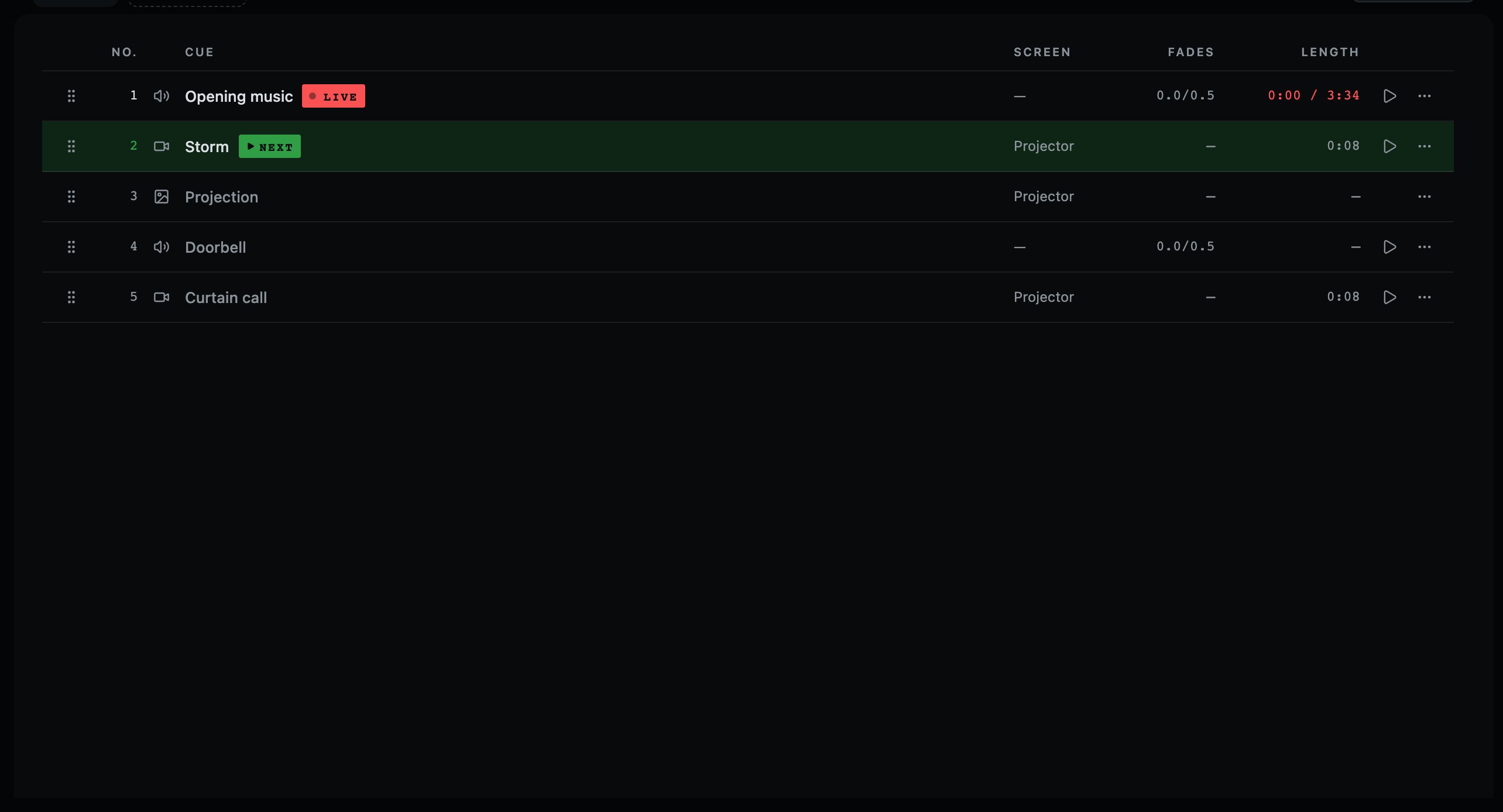
- 1The player for this cue, for holding it and winding it to any point.
- 2Everything this cue can do: the same menu the grid opens with the right mouse button.
A cue can carry a note: what to wait for before it, a line or a moment, the thing that went wrong at the dress. Add a note… on the cue's own menu opens a yellow square to write it on, and so does N on whichever cue is armed, while a show is being built. The square is one size whatever the cue is called, so a long name never stretches it. Done keeps it, and Take it off takes it off the cue. While that cue is next, the note is beside the transport in the same yellow, under the word NEXT and the cue's name, and goes when the playhead moves on. A double click on that note opens it again, to change it, add to it or take it off, during a show as well as before one. Two presses and not one, because it sits beside GO. A cue with a note has a small mark on its tile, the list shows the note itself, and it is printed with the running order.
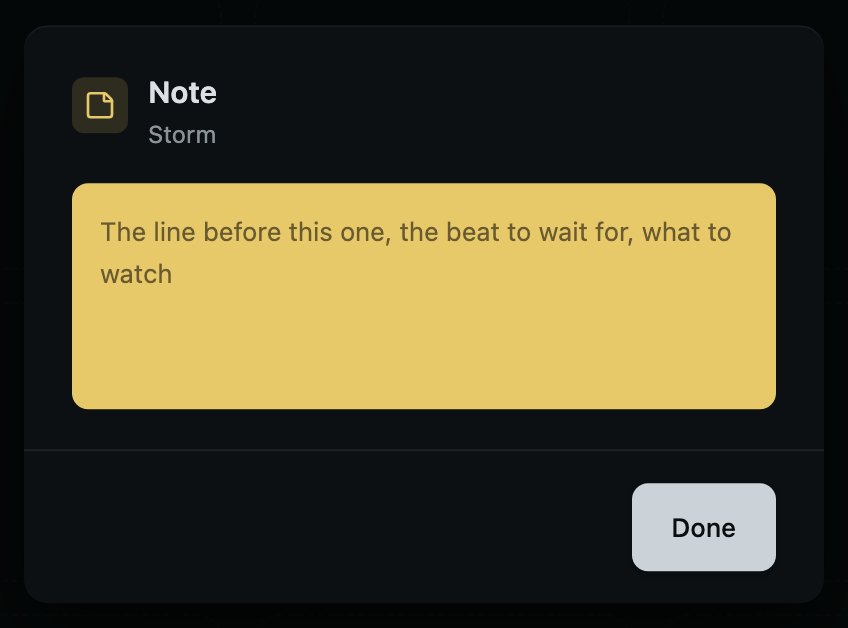

- 1The cue GO fires next, and its note. It goes when the playhead moves on. Double click it to change it.
A cue can also carry on into the next one by itself. In its settings, under the note, Then says what happens once it has started, in so many words while its list is open: Wait for GO, which is nearly every cue, Start the next cue together with this one, or Start the next cue when this one ends. Once either of the last two is chosen, the closed list says it short, Next together or Next at the end, and its seconds stand beside it on the same row, 2 s later. The tile shows a link, which says the same words when the pointer rests on it, and the line above the running order says which cue is coming and how long to go. When it ends means the end of the piece you kept, so a trimmed cue ends at its trim; a picture never ends, so it cannot be set to, and a cue that loops never reaches its end either. Held in the player, a cue holds what follows it too. GO on that layer, Clear, or stopping the layer lets go of it, so it never fires into a moment you have taken back.
If the file behind a cue changes the week before you open, Replace the file… on its menu puts the new one in its place. It keeps the place and nothing else: the act, the layer and where it sits in the running order stay, the cue takes the new file's name, and everything that belonged to the file that has gone goes with it: its fades, its trim, its note, its screen. That is the point. A fade set for a thirty second film is not a fade for the ninety second cut of it, and a setting that outlives the thing it was set for is a setting nobody chose.
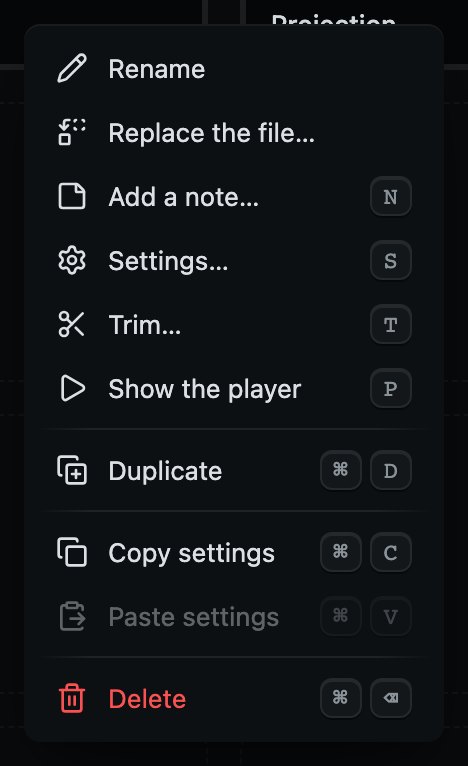
- S
- The settings for the armed cue. Not while a show is on
- T
- Trim the armed cue. Not while a show is on
- N
- Write its note. Not while a show is on
- P
- Open or close the player
- ⌘D
- Duplicate it
- ⌘C⌘V
- Copy its settings, and put them on another cue
- ⌘⌫
- Delete it, after asking. Deliberately awkward: no single key deletes a cue
04
Running the show
Three controls, in the same place, every night.

- 1CLEAR takes the running order off, on every layer, each cue over its own fade out unless this Mac is set to cut. Press it again while a sound is still going and that sound stops there. Backdrops and the camera stay up, and the next cue stays armed.
- 2BLACKOUT takes every screen to black, over the Blackout fade if Settings has one, under Screens. Nothing stops playing underneath, and RESTORE brings the picture back.
- 3GO fires the next cue and moves the playhead on. It is the only painted control on the console, because it is the one a hand has to find without looking.
Space is GO, B is Blackout, Delete is Clear. No other key fires a cue from the running order: Z, X, C and V put the first four backdrops up and take them down, and Return fires nothing unless you have walked to GO with Tab. Anywhere else it answers whatever window is in front of you. The space bar is GO everywhere on the console except on a button you walked to with Tab: walk to Clear and press Space and it is Clear, which is how a button is pressed from the keyboard. A menu opened with the mouse and put away gives the space bar straight back to GO. Tab reaches every control on the console and in every window, whatever the Mac's own keyboard setting says. And a key presses its button on the screen the way the mouse does, GO, CLEAR, BLACKOUT and the player's Hold alike, so a key that was heard looks heard; a GO that does nothing, because it came too soon after the last or there is nothing to fire, presses nothing.
What Clear does is set on this Mac, in Settings, under Running a show. Fade takes each cue off over its own fade out, the one the next cue would have taken it over, or over the show's where it has none. Cut takes sound and picture off in sixty milliseconds, as fast as a level can move without the room hearing a click. Either way, pressing it again while a sound it started is still in the room takes that sound off at once, a film's sound as well as a sound cue's. That is sound only: a picture already leaving keeps its time, and the instant control for a picture is Blackout. ⇧⌫ stops only the layer on screen, over its own fade out, and so does the square beside a layer.
Clear takes the running order off and leaves the set standing. Backdrops and the camera are up because somebody put them there, and each card is the way to take its own picture down. A cue's own choice of what its screen falls back to still happens when Clear takes that cue off, because it is an ending somebody chose.
Blackout covers every screen and stops nothing, so a film carries on under it, and a cue fired while the screens are black plays under the black and comes into sight when you press RESTORE. It takes the Blackout fade from Settings, under Screens, into the dark and back out, and nought is instant. A Blackout that fades is named in the check before the house opens, because a panic control that takes two seconds is something whoever runs the show tonight has to know. B works with a window open, the one key that does, because a panic control is never put behind a question. In a field you are typing in it types a b, like any other letter.
A sound or a film that reaches its end leaves by itself. A film's picture goes over its own fade out, its tile stops saying LIVE, and a backdrop set to come back comes back. If it is set to Start the next cue when it ends, the next cue comes in and the playhead moves on past it, as if GO had fired it. Otherwise the cue armed for the next GO stays where it was.
To jump somewhere else in the running order, type its number. The console collects the digits as you go, so 4 then 2 means cue 42 rather than cue 4 and then cue 2, and what you have typed so far is on the line above the grid, with GO to arm beside it.
Then press GO, with the space bar or the button. The first GO after a number takes the number: it arms that cue and plays nothing. The green outline moves to it, you can see you typed what you meant to, and the second GO fires it. That is one press more than a lighting desk asks for, and it is there on purpose: jumping is a rare, deliberate thing to do in the middle of a show, and a mistyped digit that fires immediately is a cue nobody wanted over a scene. Esc forgets a number you have started.
The arrow keys do the same job at close range: ← and → move the armed cue back and on one at a time, without playing anything, and so do ↑ and ↓. Past the last cue of an act they bring up the next act with its first cue armed, and before the first the act before with its last; held down, they stop at the end of the act, so crossing into another is always a press of its own. Moved back onto a cue that is playing, it says NEXT beside LIVE and keeps the green outline, because the next GO plays it again from the top.

Once a show is on, S, T, N and ? open nothing. While a show is being built they open the armed cue's settings, its trim, its note and the list of keys. Once any cue has reached the stage, even one tried by hand in the afternoon, a window from a key brushed in the dark would put GO and Clear behind it, and turn the B pressed straight after into a letter in a note. So each says it does nothing and which menu has the same thing, and the menus keep all four. The keys open their windows again after Leave show mode, after New show, or once another show is opened.
And a window never takes a key that was already on its way. For its first moment a window that has just opened does not hear Space or Return, and a key held down since before it opened is ignored until it is let go, so the second tap of a double tap on GO cannot press a button in the window the first tap opened. Esc and B are never held back. In a window, Return gives the window its answer: Delete, Save or Done. Esc is a window's way back: Cancel where the window has one, in a question and in a cue's settings and its trim; in a window with only Done, it closes it as Done. In a field, Return puts in what you typed and Esc puts back what was there; press either again for the window. Tab to a button and Return presses that button. Return never sends a report; Send does. A window opens on itself rather than on its first control, so the space bar presses nothing in it, and renaming a cue selects its name, so what you type replaces it.
The first cue that reaches the stage puts the console into show mode, whether it went with GO, with a double click in the afternoon, or as a backdrop or the camera. From that moment it stops telling you things: no update notices, no first run help, nothing over the running order that is not about the show, and no explanation when the pointer rests on a control. The player, and every window opened from a button or a menu, work as they always do. Unless Silence this Mac's own sounds is turned off in Settings, your Mac's alert volume goes to nothing too, so no notification or message tone can happen over a scene. The old level is written to disk before it is changed, so even a machine pulled out of the wall gets it back. The check at the foot of the column on the left says Show mode while it lasts. Leave show mode, for a rehearsal stopped half way, is at the end of the line along the top that says what is on, for as long as show mode lasts, and in the check's card as well: it gives back S, T, N and ?, the explanations and the Mac's own sounds. It is the one control that still explains itself during a show, and GO's own explanation, read before the show, says GO starts it. The next cue that reaches the stage starts show mode again, and GO does not walk into the check a second time that evening. Otherwise show mode lasts until New show or another show is opened.
05
Acts
One running order per act, or per scene, or one for the whole evening.

Add an act with Add act, at the end of the acts. Cues you add land in the act you are looking at, and switching act changes the running order and the backdrop strip together. Drag the acts into the order the evening runs in, and double click a name to change it. An empty act goes at a press of its cross; one with cues in it asks first, and one press of undo brings it back either way. On Solo a show grows to one act, and Add act says a second is part of Pro: see Solo and Pro, under Your account.
GO never fires across an act boundary, and it never wastes a press on one either. The moment the last cue of an act is played, once every layer has played this act to its end, the next act comes up with its first cue armed, so the GO after it plays that cue. While another layer still has cues to come in the act, the line above the running order says End of act instead, and the GO after it brings up the next act. What is still playing from the act before is still said, on its layer's row, in the line beside the acts and in the player. After the last cue of the last act the show stays where it is, and the line under GO says End of the show.
The keyboard reaches the acts as well. ⌘1 to ⌘9 show the act in that place along the strip, and ⇧⌘] and ⇧⌘[ show the act after and the act before, the keys Safari and Finder move between their tabs with; they stop at the first and the last act rather than going round. Hold ⌘ on its own and each act shows its number where its cross is, as soon as the key is down. None of them fires anything: showing an act is what pressing its tab does, and crossing into the next act in the middle of a show is still the two presses of GO.
- ⌘1to⌘9
- Show the act in that place. Hold ⌘ to see which is which
- ⇧⌘[⇧⌘]
- Show the act before or after. Stops at the first and the last
06
Layers
Running orders side by side: music that carries on under a scene, a gunshot over a film.
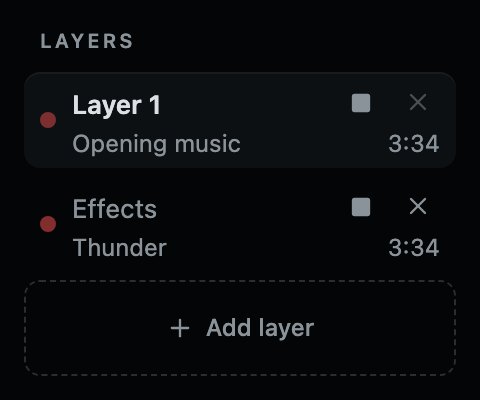
- 1The layer in the grid. GO fires the next of its cues.
- 2Stops what is on this layer, over its own fade out. The others carry on.
- 3Another layer, and what it has on, counting down. Double click the name to change it.
- 4Takes the layer away, after asking if it has cues. They go back to layer 1. While ⇧ is held, its number stands here instead.
- 5Another layer, up to four.
A cue replaces only what is on its own layer. Put the music bed on one layer and the scene on another, and a video starting on the first does not stop the music on the second. A sound effect on a layer of its own fires over whatever is playing and leaves it playing. Pictures stack: a slide on layer 2 sits over the film on layer 1, and when it goes the film is still there. A picture with see-through parts shows what is under it. Sound from every layer mixes.
The grid shows one layer at a time, and GO fires the next cue of the layer on screen. Each layer keeps its own place, so switching to another and back finds you where you left it. A press anywhere on a layer's row puts it on screen; the stop and the cross on the row do their own jobs. ⇧1 to ⇧4 put a layer on screen from the keyboard, and ⌥⌘] and ⌥⌘[ put the layer below and the layer above on screen, stopping at the last and the first. Hold ⇧ on its own and each layer shows its number where its cross is, as soon as the key is down, the way the acts do under ⌘. None of them fires anything: the space bar is still GO.
Each row says what is on it and how long is left of it, counting down, or HELD while it is held, because a held cue is getting no nearer its end. Its red dot pulses while the cue runs and stands still while it is held. When is this layer free is the question during a show, and it is the one thing you cannot get from the grid, which is showing you one layer at a time. A cue trimmed to eight seconds of a four minute track has eight seconds left, not four minutes. A sound or a film that reaches its end stops saying it is on by itself, with nothing pressed. Unless it is set to Start the next cue when it ends, nothing else is touched: the cue armed for the next GO stays exactly where it was.
New cues land on the layer on screen. To move one, choose Move to layer on its own menu and pick the layer from the list beside it, or pick a layer in its settings; it moves when that window closes, unless you press Cancel. Move to act takes a cue into another act the same way, to the end of its running order. Neither is offered when there is only one layer, or only one act. Clear stops every layer at once. ⇧⌫ stops just the layer on screen, and so does the square beside a layer. Once there is more than one layer, the name beside GO's key says which one it will fire.

- ⇧1⇧2⇧3⇧4
- Put that layer on screen. Fires nothing. Hold ⇧ to see which is which
- ⌥⌘[⌥⌘]
- Put the layer above or below on screen. Stops at the first and the last
- ⇧⌫
- Stop only the layer on screen, and leave the others running
Every show starts with one layer, which is how every show has always worked, and a show saved before there were layers opens exactly as it was. Add a second only when you want two things running at once that must not stop each other. On Solo a show grows to one layer, and Add layer says a second is part of Pro: see Solo and Pro, under Your account.
07
Backdrops
The picture that sits there between cues.
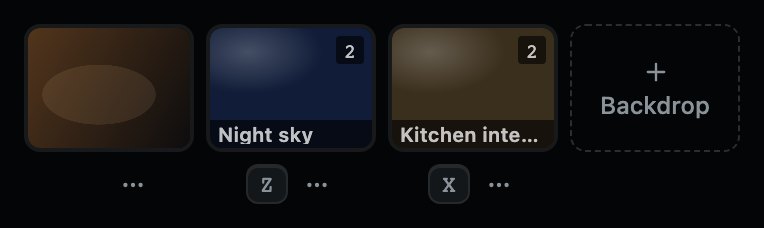
- 1A camera in the room, chosen by its picture rather than its name: the first press opens the window to choose it. After that, press it to put the camera on its screen, and again to take it down. Its menu has Camera settings…, Choose a camera… and Delete, which forgets the camera in this show, from the right mouse button or the button marked … under it. With nothing plugged in it says No camera, or Not here once a camera has been chosen, and it is still a button: the window it opens finds a camera the moment one is plugged in.
- 2A backdrop. Press it to put it up, press it again to take it down. With more than one screen, the number in its corner is the screen it goes up on.
- 3The key that switches it, so you never have to find it with a mouse.
Backdrops are separate from the running order on purpose: GO never touches them, and neither does Clear, so a set slate or a house curtain stays where you put it while cues come and go over it. Add one with the Backdrop card at the end of the strip, or drag pictures and videos onto the strip from the Finder. With more than one screen you can have a different backdrop on each, and a backdrop can be kept in the strip in every act, from its own settings, for the one picture that is in reach all evening.
Each card has its name across its foot, so two pictures that look alike can be told apart. Its menu opens with the right mouse button on the card, or with the button marked … beside its key, because the card itself is the button that puts the backdrop up. It is the menu a cue has, with what a backdrop can use: Rename, Replace the file…, Backdrop settings…, Duplicate, Move back to the cue list, Copy settings, Paste settings and Delete. Rename turns the name on the card into a field to type in. No keys are printed on it, because the keys reach the armed cue, and a backdrop is never armed.
The camera is the same kind of thing: a picture held on a screen until somebody takes it down. Which camera it is belongs to this Mac and this room, and never travels in a show. Where it goes and how it comes and goes belong to the show: Camera settings…, on its menu, has the screen it goes on, Default following the show's, and a fade in and a fade out, which follow the show's picture fades, in Settings under Screens, until you type a number, and stay a cut at nought. Save keeps them, as one step of undo, and Cancel leaves the show as it was. While the camera is up a new screen or fade takes effect the next time it goes up, and the window says so; pressing its card takes it off the screen it is on, over the fade it went up with. A camera whose cable comes out takes its screen to black rather than holding the last frame, because a frozen picture of a stage looks exactly like a live one, and it comes back on its own when the cable does.
A backdrop that is up is drawn in the same red as a cue that is on air, with the same pulsing dot, because it is the same fact: this is on the screen the audience is looking at. Blacked out, it goes black and says so, so the one thing you can never tell from a dark auditorium, whether the screens are black because of the show or because somebody pressed B, is on the console in front of you.
A picture or a film can say what its screen falls back to when it finishes, in its own settings: Leave the backdrop as it is, Turn the backdrop off, or Switch to another backdrop in the act. That still happens when Clear takes the cue off.
- ZXCV
- The four backdrops, in the order they sit in the strip: up, or down again
08
The player
For rehearsal: wind a cue back, hold it, and find the moment again.

- 1
The layer
With more than one layer, and in a wide window, the name of the layer Hold reaches. The cue itself is lit on its tile and named in the line above the running order, so the player does not name it a third time.
- 2
Hold
Holds the cue that is on where it is, and Resume, in the same place, lets it run on from there. The sound goes down over sixty milliseconds before it stops and comes back up over the same, so the room hears no click, and a film's sound does the same while its picture stops and starts with it. H does what Hold does, and only while the player is open, so a key brushed in the dark cannot stop the music; it is drawn on the button. Held, the cue says HELD on its tile and its row, and what follows it waits.
- 3
Back to the start
The round arrow. Back to the top without taking the cue off: playing, it plays on from there, and held, it waits there. On a trimmed cue that is the top of the file, before the piece the trim keeps.
- 4
The fader
How loud the cue that is on is playing, right now, with the number beside it. Move it and the stage follows, without the cue stopping and starting again.
- 5
The line
Where you are in the file. Press anywhere on it to go there. On a trimmed cue the whole file is drawn, so a press before the start plays what the trim leaves out, and a press past the stop ends the cue, or sends a loop round.
- 6
The time
How far into the file, and how long the whole file runs. On a trimmed cue this is the file, where its tile counts only the piece.
- 7
The cross
Puts the player away. Whatever is playing carries on.
Press P, or choose Show the player on a cue's own menu or on its row in the list. It floats over the grid rather than pushing it down, so opening it moves nothing: the tile you were reaching for is still where it was. It follows whatever is on the layer on screen, so with ⇧2 it follows layer 2. A cue moved to another layer while it plays is still followed on the layer it went up on. It opens closed each time CueMonkey starts, and after that it is open or closed only when you say: P opens it and puts it away, and so does its cross, so it can stay open through the show.
Hold waits for a sound's fade: a fade in held a third of the way up goes on from a third when the cue runs on. A film's fade does not wait, because its picture and its sound share one time, so a film held halfway up comes back at its own level with its picture already there. A cue on its way out is never held. A cue set to start the next one with it holds its count too, and the line above the running order says how long after it runs on the next will come. A hold that finds nothing to hold, because the cue ended a moment before the press, says so in a receipt, "It is not playing any more." Anything else the stage refuses is a notice over the running order. Either way, whatever was to follow goes back to how it stood.
With the player closed, H holds nothing and says so, and that P opens it. With nothing it can hold it says what is there instead: nothing playing, a still picture, which has nothing to hold, or a cue that has already ended.
The fader moves the cue's own level, the one kept with the show, rather than trimming tonight: rain that is too loud is a note for every night. It has the same range as the fader in the cue's own settings, because a fader that cannot reach what the other one can is a fader that lies, and it is drawn as a row of lights, like a meter on a desk, lit from the left up to the level: pale up to the file as it is, amber above that, and red past where this cue's own loudest moment would clip. The number beside it wears the same colour. It goes up to four times the level of the file, for a film's sound as much as for a sound cue. One move of it is one press of undo, not forty. It answers the arrow keys only once you have walked to it with Tab: moved with the mouse, it leaves the arrows to the running order.
It is grey when nothing is on, when what is on is a picture, and when a video is playing with its sound off. Rest the pointer on the speaker beside it and it says which of the three. A cue still coming up on its fade goes to wherever you leave the fader rather than to where it was heading when the fade started; a cue on its way out ignores it and goes to silence.
This is a rehearsal tool. Nothing here is on the transport, because holding a cue halfway is not something anybody does during a performance, and a control that is never used in a show should not be sitting beside GO.
09
Trimming a cue
Cut a cue down to the piece the show actually uses.
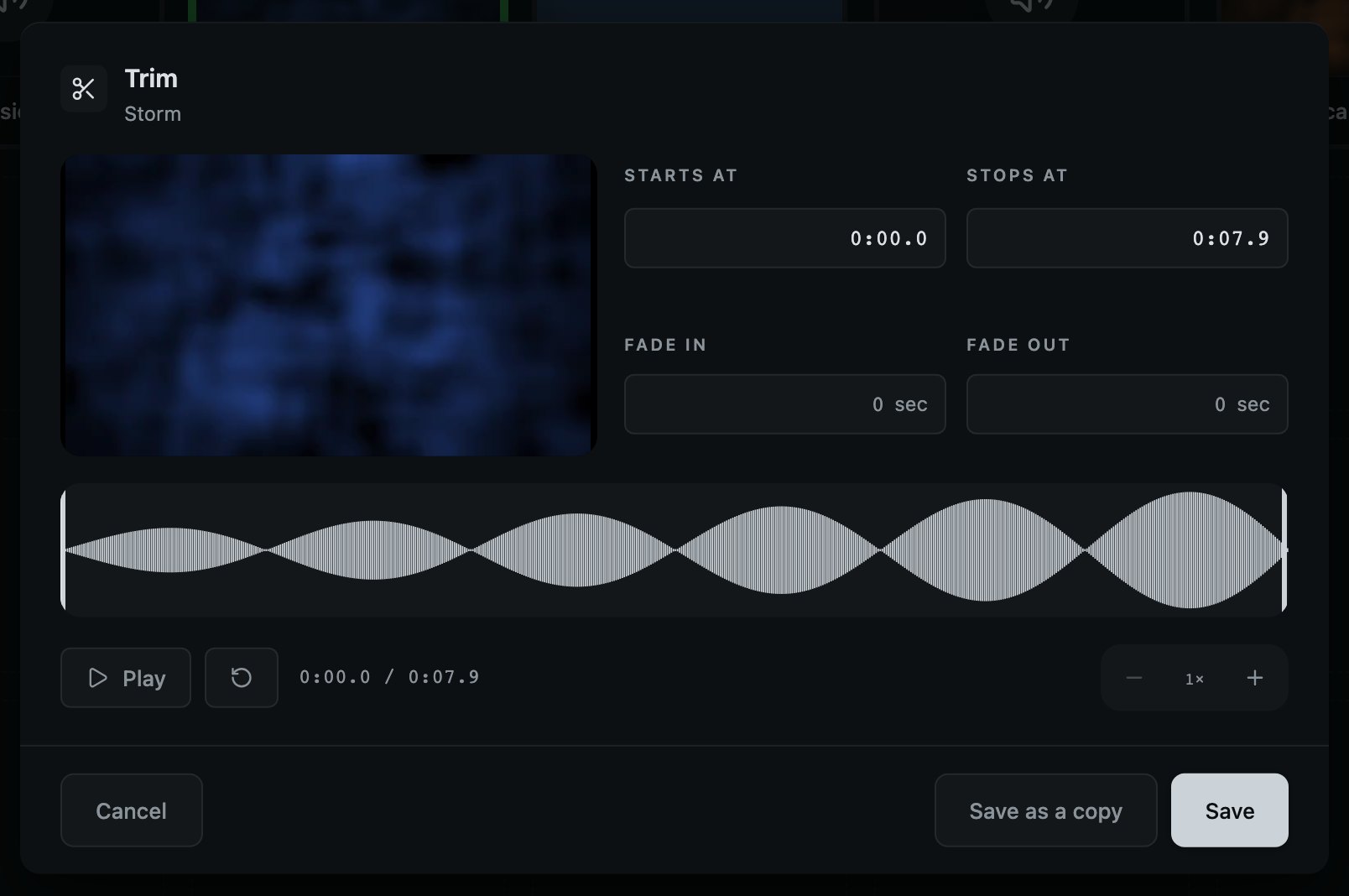
- 1The picture, if this cue has one, playing from wherever the line is.
- 2Where the cue starts and stops in its file. Type a time, or drag the handles below.
- 3How long the cue takes to come up, and to go as the next one arrives. On a video that is the picture and its sound together.
- 4The sound of the whole file, with the piece you keep drawn brighter. Drag either end, or press it and nudge it with the arrow keys: a tenth of a second at a time, or a second with ⇧.
- 5Play what you have chosen, or hold it, and go back to the start of the piece.
Press T on the armed cue while a show is being built, or choose Trim… on the cue's own menu at any time. Whole file puts the whole recording back, and the plus and minus draw the timeline wider, to put a cut on a word. Save keeps the trim, and so does Return. Esc is Cancel, and so is a click outside the window: what you changed goes back as it was when the window opened, the console says what it put back, and ⌘Z brings it back. Save as a copy adds a second cue straight after this one with the new trim, for using two pieces of the same recording, and leaves this one as it was.
A trimmed sound ends exactly on its out point, going down to nothing over the last five milliseconds so that it never ends on a click, and a cue set to start the next when it ends fires there. A trimmed sound that loops goes round on a splice, from the last moment before its out point straight to its in point. Nothing is faded up at an in point: a trimmed gunshot keeps its attack. A film's sound is treated the same way: a trimmed film ends on nothing, and a trimmed film that loops goes round on a splice, with its picture going round with it.
Nothing here touches your file. A trim is two numbers on the cue, so you can move it a hundred times during a tech and it costs nothing to save.
10
Cue settings
How one cue behaves. Anything you do not touch follows the show.
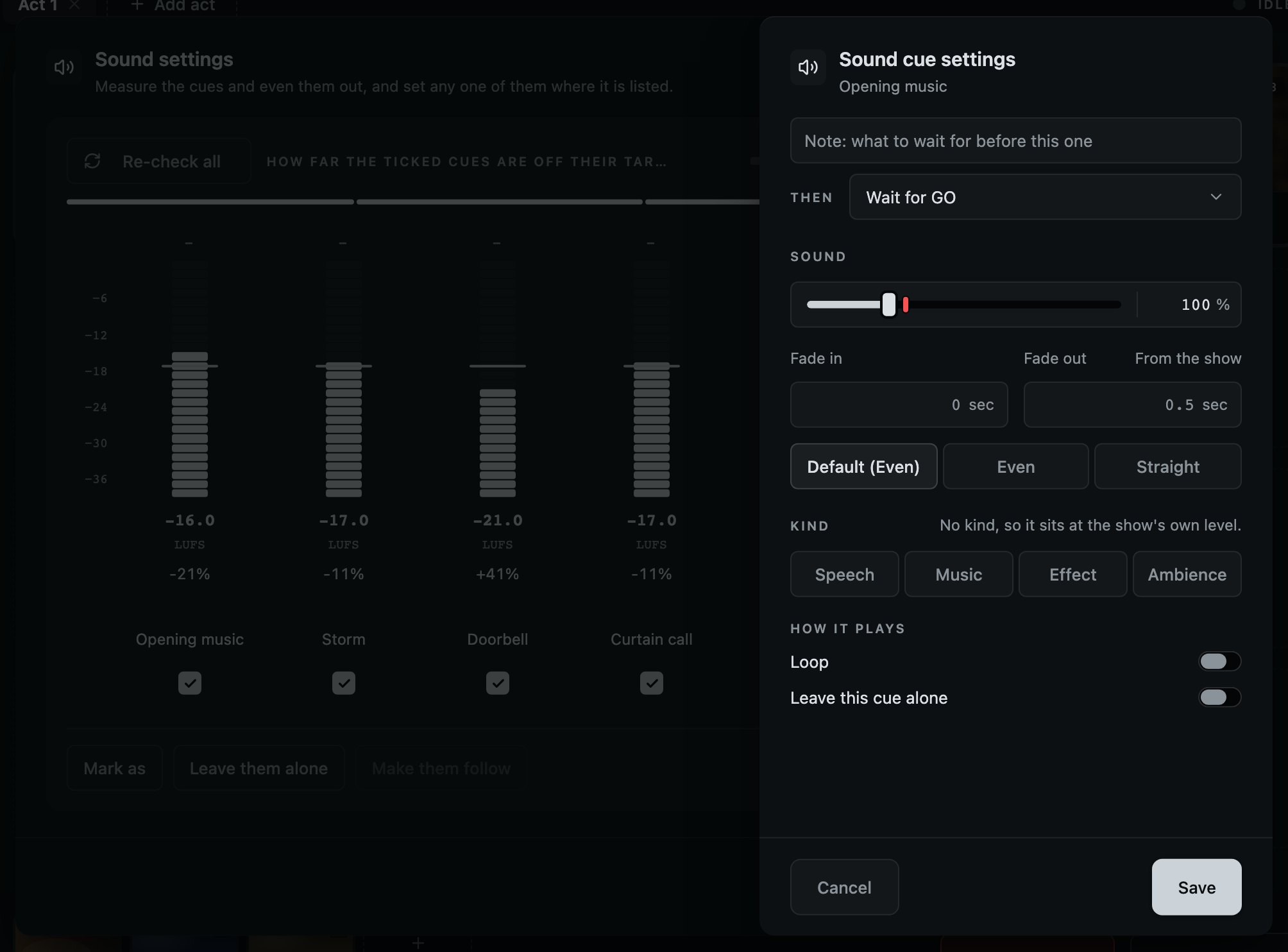
Press S on the armed cue while a show is being built, or choose Settings… on the cue's own menu at any time; in Sound settings, a press on a cue's name slides the same settings out beside the list. It is one column, read from the top, and laid out the same way for a video, a sound and a picture: the note across the whole width and Then under it, then where it goes, how it looks, how it sounds, its kind, and how it plays last. Whatever a kind of cue does not have is simply not there, and a film's fits the window without scrolling. What each heading is about is on the heading itself, when the pointer rests on it. Its title says what kind of cue it is, Sound cue settings, Video settings or Picture settings, with the cue's name under it; a backdrop's window is called Backdrop settings, and has its name under the title too. A change goes into the show as you make it. A cue that is playing takes a new volume, or Mute, at once; a fade, the screen, Black & white and Loop are heard and seen the next time the cue is fired. Save keeps what you have set, and so does Return. Esc is Cancel, and so is a click outside the window: what you changed goes back as it was when the window opened, and a note, a follow or a layer chosen there does not happen. The console says what it put back, and ⌘Z brings it back.
A choice of a few, like Kind or a fade's shape, is a row of buttons across the window, and the chosen one is white. Kind is speech, music, an effect or ambience. A cue with none of them lit sits at the show's own level, and Kind's heading says so; once a kind is set, Back to the show's level stands there instead. The level is one field: the fader, with its number at the end, which takes a click and a typed number like any field. The red mark on the fader is where this file's own peaks would clip: it stands proud of the track, so it is seen over the fill, and past it the fill is red. Back to the level evening out found, Back to 80% or whatever it was, sits on Sound's heading, and so does a film's Mute; a fade that follows the show says From the show beside its own name, and one with a number of its own has Use default there instead. Black & white is a small switch on the picture's row, white when it is on. What a screen falls back to is under the screen, and Hold as a backdrop is under How it plays, where Loop and Leave this cue alone have a row each.
A cue has one fade in and one fade out, whatever it is made of. On a video that one pair moves the picture and the sound that came with it, together, over the same time, which is what a cue arriving looks like, and what anybody setting one actually means. A cue with no fade of its own goes over the show's, which are in Settings: under Sound the pair for sound cues, and a new show has its fade out on there at half a second and its fade in off, because a fade in would soften the attack of every gunshot; under Screens the pair for anything on a screen, and a new show starts with both off. A fade set to nought on the cue itself is a decision, and stays nought whatever the show's fades become.
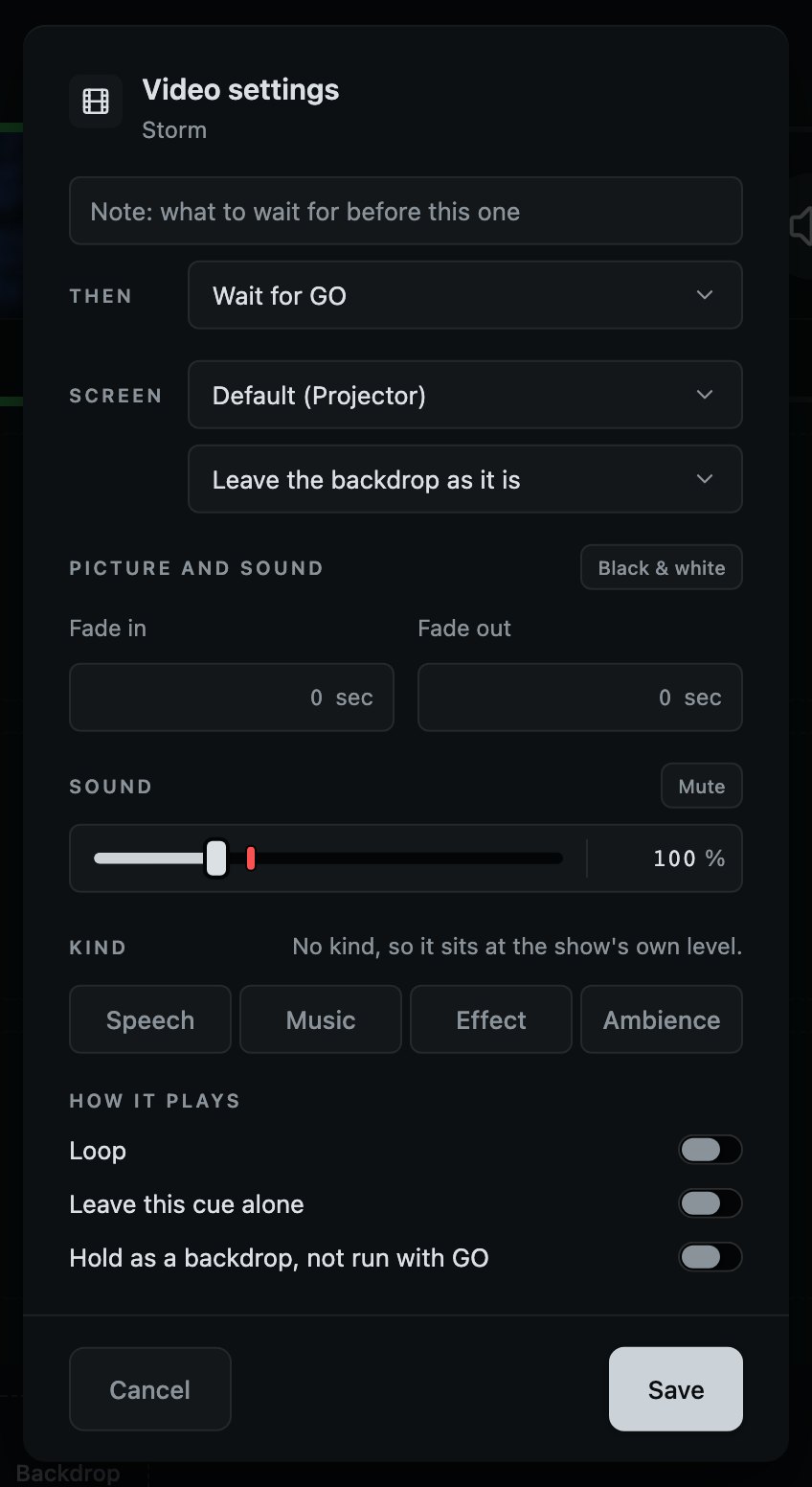
- 1A note: what to wait for before this cue. It sits beside the transport while this cue is next.
- 2Then: what happens once it has started. Wait for GO, or start the next cue together with this one, or when this one ends; once chosen, those two say Next together and Next at the end, with the seconds beside them.
- 3Which screen this one plays on. Left on Default it follows the show's screen. Only a screen for the audience, or the one the console is on, where it plays in a small window, is offered. A screen the cue already names that is only for you says so, and the cue plays on this Mac.
- 4Black & white: the film without its colour.
- 5How the whole cue comes up and goes: the picture and its own sound, over the one time. Left empty, it follows the show's fades, from Settings under Screens, and says From the show.
- 6Hold this as a backdrop instead of running it with GO. What the screen falls back to when it finishes is under the screen.
- 7Mute plays it silently. Its sound is only turned down to nothing, so taking Mute off while the film plays brings the sound straight back.
- 8How loud, when it is not silent: up to four times its file, as for a sound cue. The fader and its number are one field, and the number at its end can be typed into.
- 9Whether it goes round again at the end.
- 10Leave this cue alone: evening out, and the buttons that put the show's fades or its screen on every cue, all skip it. For a gunshot or a sting, set it once and it stays set.
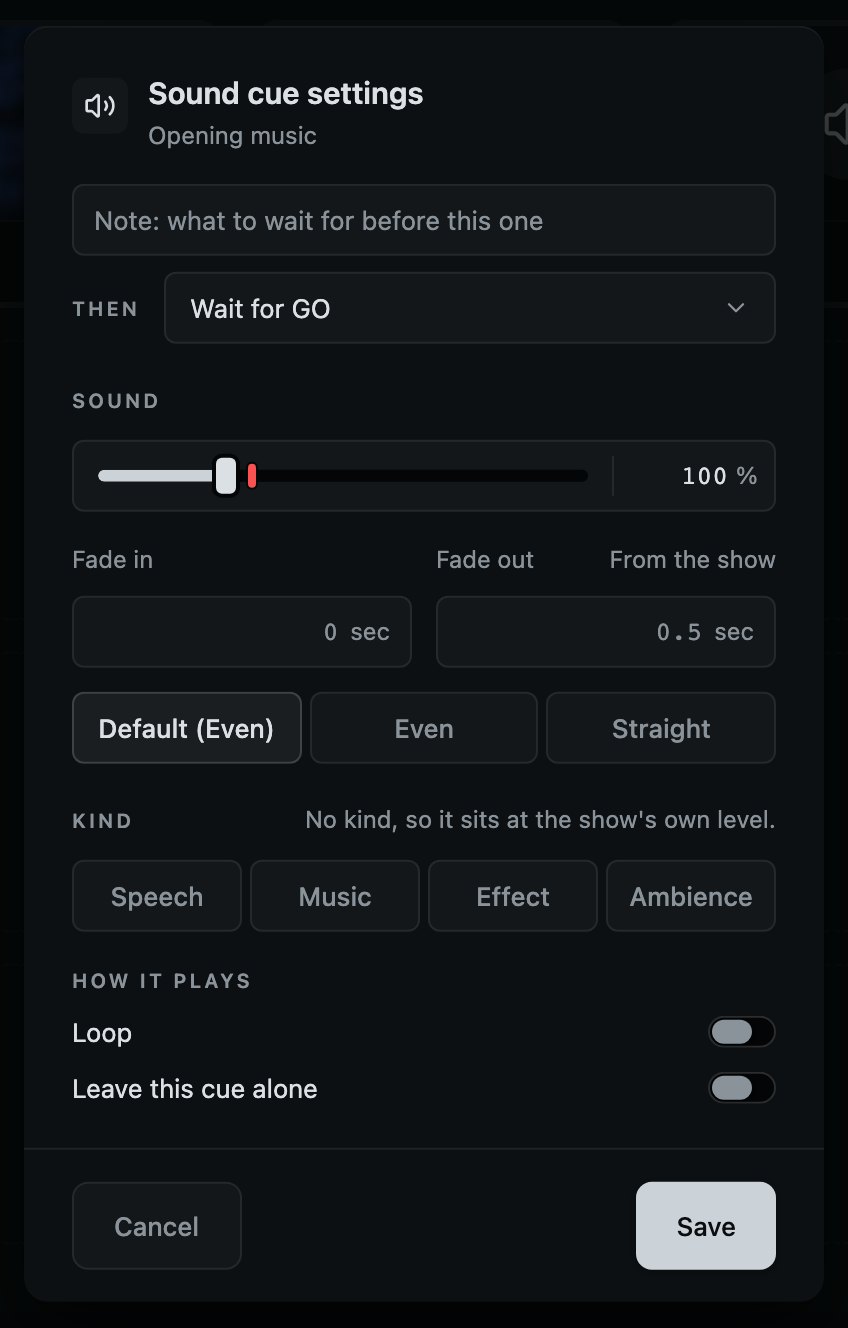
- 1How loud this one sits, against everything else in the show, up to four times its file. The fader and its number are one field, and past the red mark the fill is red: there this file would clip.
- 2What kind of thing it is: speech, music, an effect or ambience, or none lit for the show's own level. Evening out aims each kind its own distance from the show's level.
- 3Its own fade in and fade out. Left empty it follows the show's pair, from Settings under Sound, and says From the show.
- 4How its fade in comes up, and how the cue before it on its layer goes as this one comes up over it: Even, Straight, or the show's. A fade to silence goes down like a fader whichever it is.
- 5Whether it goes round again at the end.
- 6The buttons that change every cue at once will skip this one.
A sound cue's fade out goes down like a hand on a fader: evenly to the ear, sixty decibels down over nine tenths of its time and then smoothly to nothing, with no step at the end. That is every fade to silence, Clear and a layer's own stop included, and a film's sound goes down the same way, because it is played the way a sound cue is. Even and Straight are how a fade in comes up and how two cues cross: Even holds the loudness steady through a crossfade, which is what a sound desk does, and Straight is a plain straight line.
A cue's volume is the volume it is playing at, not the volume it was fired at. Change it here while the cue is on, or on the player, or by evening the whole show out, or by taking a change back, and the stage follows over about sixty milliseconds: soon enough to be immediate, slow enough that the room hears a level rather than a click. Only the level. Where a cue starts and stops, whether it loops and which screen it plays on are what it was fired with, and stay that way until it is fired again.
Where a cue starts and stops in its file is set in the trim window, not here: one place for it, so the two can never disagree. With more than one layer in the show, a Layer choice appears here too, and the cue moves to it when the window closes, unless you press Cancel.
11
Screen settings
Which screens are the audience's, and how the picture sits on each.
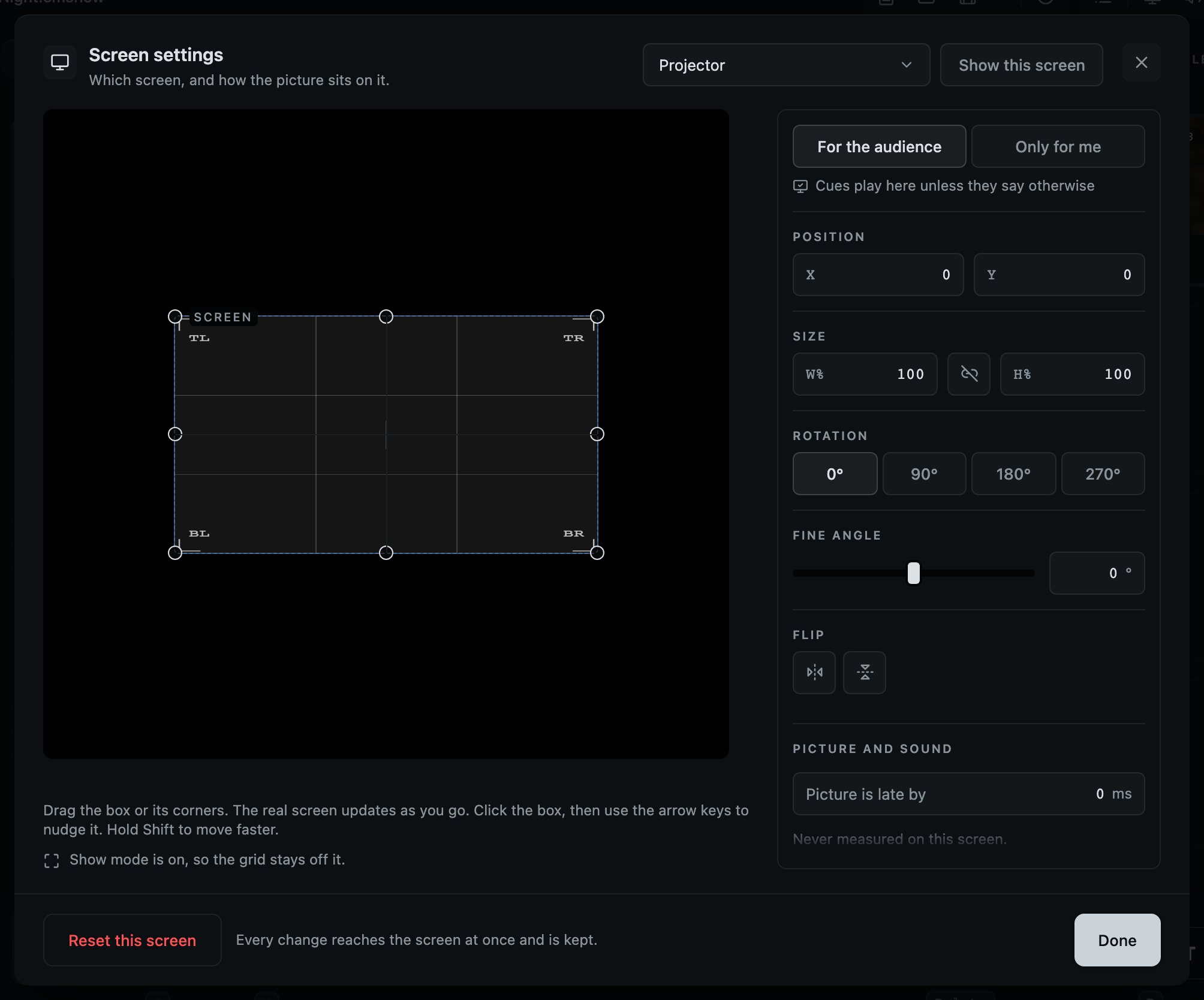
- 1Which screen you are setting up, at the head of the window. Each one is set up on its own, and a monitor mirroring the projector is shown as one screen with it.
- 2Puts this screen up with the alignment grid on it, so there is something real to line up against. A screen for the audience is up already, black, from the moment the console opens, and the grid waits for this or for the picture being moved. On a screen that plays in a window, Put the window back stands beside it.
- 3Drag the box, or its corners. The real screen moves as you go. Press the box and the arrow keys nudge it, faster with ⇧.
- 4What kind of screen this is, said only where it is news: on this Mac's own screen or the console's, the show plays in a window you can move. In show mode it also says the grid stays off. Not a setting: see below.
- 5Who this screen is for. Nothing from the show reaches a screen until it is marked For the audience, and marked, it goes black at once. Under it, whether cues play here unless they say otherwise, or Make this the default screen.
- 6Where the picture sits and how big it is, as numbers, for when you know exactly what you want. The link between the two sizes keeps the proportions.
- 7Turn the picture a quarter at a time, for a projector hung on its side or upside down. Flip, further down, mirrors it for a projector behind the screen or bounced off a mirror. A choice that is on is lit.
- 8Fine angle turns the picture a little more, up to ten degrees either way, for a projector hung a little off level.
- 9Picture is late by: how long this screen takes to show a frame, so a film's sound can wait for it. Only when the show has a film in it.
- 10Reset this screen puts where the picture sits, its size and its turn back as they were, and its lateness to nought. Every other change reaches the screen at once and is kept.
Every screen is yours until you say otherwise. A booth often has a second monitor that is the operator's own, with the sound desk or the script on it, so a screen is for the audience only once it is marked For the audience here, and nothing the show does reaches a screen that is not: not a picture, not a backdrop, not the camera, not the alignment grid. Only for me is the other answer, and this Mac's own screen and whichever screen the console is on are always yours. A screen is remembered by the Mac's own record of that display, not by its name or its place in the list, so the projector stays the audience's and the work monitor stays yours whatever order the cables went in tonight. A projector this Mac has never met, at a venue you have not played before, is a screen nobody has said anything about, and is marked the same way. On Solo one screen is for the audience at a time and one venue profile is kept; marking a second screen For the audience, or keeping a second venue, is part of Pro: see Solo and Pro, under Your account.
A screen nobody has said anything about is drawn with neither answer lit. While the show has something to put on a screen and no screen that is here is for the audience, a line over the running order says nobody has said who that screen is for, and that pictures play in a small window on this Mac; Say who it is for opens Screen settings on it, and with more than one such screen there is a button for each, by its name. The line goes the moment the screen is marked, either way, and it takes nothing from GO, Clear or Blackout.
Screen settings is the picture of the screen and one column beside it, read from the top: who the screen is for, then the picture, how late it is, and the saved venues. Where there is no screen for the audience to put a picture on, it plays in a small window on the console's own screen, which only you can see. Make this the default screen sends there every cue that does not name a screen of its own; a cue that names one keeps it. What each heading is about is on the heading itself when the pointer rests on it, and so is every control.
A screen for the audience is covered from the moment the console opens, as it is plugged in and the moment it is marked For the audience, whether or not anything has played on it yet. With nothing on it, it is black, and it runs the show on all of itself, with no borders: no pointer on it, nothing of the console's, and no words of any kind between cues. It stays covered for as long as CueMonkey is open, so to use it as an ordinary screen again, mark it Only for me, or quit. Only for me clears it of whatever the show had put on it. If it was the show's default screen, the show plays on the next screen for the audience for now, or in the small window on the console's own screen when there is none, and marked For the audience again, it is the show's screen once more. A screen nobody has marked is left as the Mac has it, and goes black the moment it is marked For the audience. If a screen for the audience cannot be covered, a line over the running order says "Screen 3 would not go black, so the audience may be seeing this Mac's desktop on it.", with the reason under it and Try again beside it, and it goes by itself once the screen is covered: see When something goes wrong.
This Mac's own screen, and whichever screen the console is on, get a window you can move instead: a picture covering the screen you work on would leave nothing to click to get back. On the screen the console is on, that window starts just above GO, Blackout and Clear, where you are already looking. Move it anywhere and it is there next time; Put the window back puts it back. A screen's window never keeps the keyboard. One that covers a screen can never have it, and the small window hands it straight back to the console, so a hand that lands on the projector in the dark leaves GO, Clear and Blackout where they were.
A monitor mirroring the projector, set in System Settings or through a splitter, is the way to see in the booth what the audience sees, and the console treats the pair as one screen: the audience's if either was marked so, and either can be unplugged. The pair is marked as one, so a monitor that was mirroring the projector when you marked it For the audience is the audience's on its own once the mirroring is turned off with both still plugged in: it goes black at once, like the projector, with the pointer hidden over it. Mark it Only for me to have it back. The other way round, the projector copying this Mac's own screen, puts the console in front of the house. The check before the house opens stops the show over that when it knows the display is the audience's, and over a console that has opened on a screen marked for the audience. For a show with pictures, it asks when that display might be your own monitor copying the laptop, and stops the show when the mirroring leaves the pictures nowhere to go but this Mac.
A screen keeps its number for the whole evening. An unplugged screen leaves a gap rather than moving the others up, one plugged back in has its own number again, and a cue set to a screen that is not there plays in the small window on the console's own screen instead, which the check before the house opens says. The number holds for the run and not beyond it, and nothing about the room is kept by it: how each screen is hung, who it is for and the screen the show goes out on are remembered for the screen itself, so opened again with the cables the other way round, each projector keeps its own keystone. A venue profile finds each screen the same way on the Mac it was saved on, so two projectors of one model are told apart; on another Mac it goes by the screen's name and size, and then by its number, so look at each screen after loading it there.
A screen plays a film's picture and none of its sound: the sound is played with the sound cues, through Audio output, in Settings under Sound, and the picture keeps in step with it. When the two drift a little apart, the picture runs a touch faster or slower until they meet, which nobody sees; when they are far apart, the picture jumps to where the sound is.
A projector shows a frame a little after it is handed it, and nothing on this Mac can know by how much. So each screen has Picture is late by, under Picture and sound, in milliseconds, offered only when the show has a film in it, because only a film's sound waits for its picture: nought until somebody sets it, and kept with the screen like its keystone, never in the show. It is the screen's alone: how late the sound device plays is taken off already, and resting the pointer on the line beside the number names the device and says by how much. A device that will not say how late it plays has the line say the number is right with that device only. Play the line-up film puts a white flash and a beep on the screen every second, and plays them with the number the screen already has; watch from the seats and change the number until each flash lands on its beep, and a film's sound waits that long for its picture. For a finer reading, open cuemonkey.app/sync.html on a phone in the middle of the house while the line-up film plays: it records twenty seconds and says how much to change the number by, "Add 63 to the number in Screen settings for that screen" or "Take 25 off", because it measures what is left after the number already set. Screen settings shows the day it was set, or that it was never measured on this screen. Once a show is on, Play the line-up film is greyed: the audience may be looking.
Saved venue profiles, at the foot of the column, keeps every screen in the room at once under the name of the room. Next time you are in it, Put on puts them all back. Saving under a name already kept brings that venue up to date rather than keeping a second, and once the screens have moved since the venue in use was kept, a line under it says so, with Update beside it. Closing the window asks nothing, because the screens as set are already kept on this Mac.
The show's fades for pictures, and the Blackout fade, are in Settings, under Screens. A change to the fades reaches every video and picture cue without fades of its own at once, and the line under them says how many cues keep fades of their own and do not follow. Make them follow takes those off, skipping cues left alone, with Leave this cue alone in their own settings or Leave them alone in Sound settings, and one undo takes it back.
Opening Screen settings puts nothing on a screen by itself. The alignment grid goes up on the real screen once you start lining that screen up, with Show this screen or by moving the picture, and comes off it when you close this window or pick another screen in it. Once a show is on it stays off: an audience may be looking.
12
Sound settings
Every cue measured, evened out, and set where it stands.
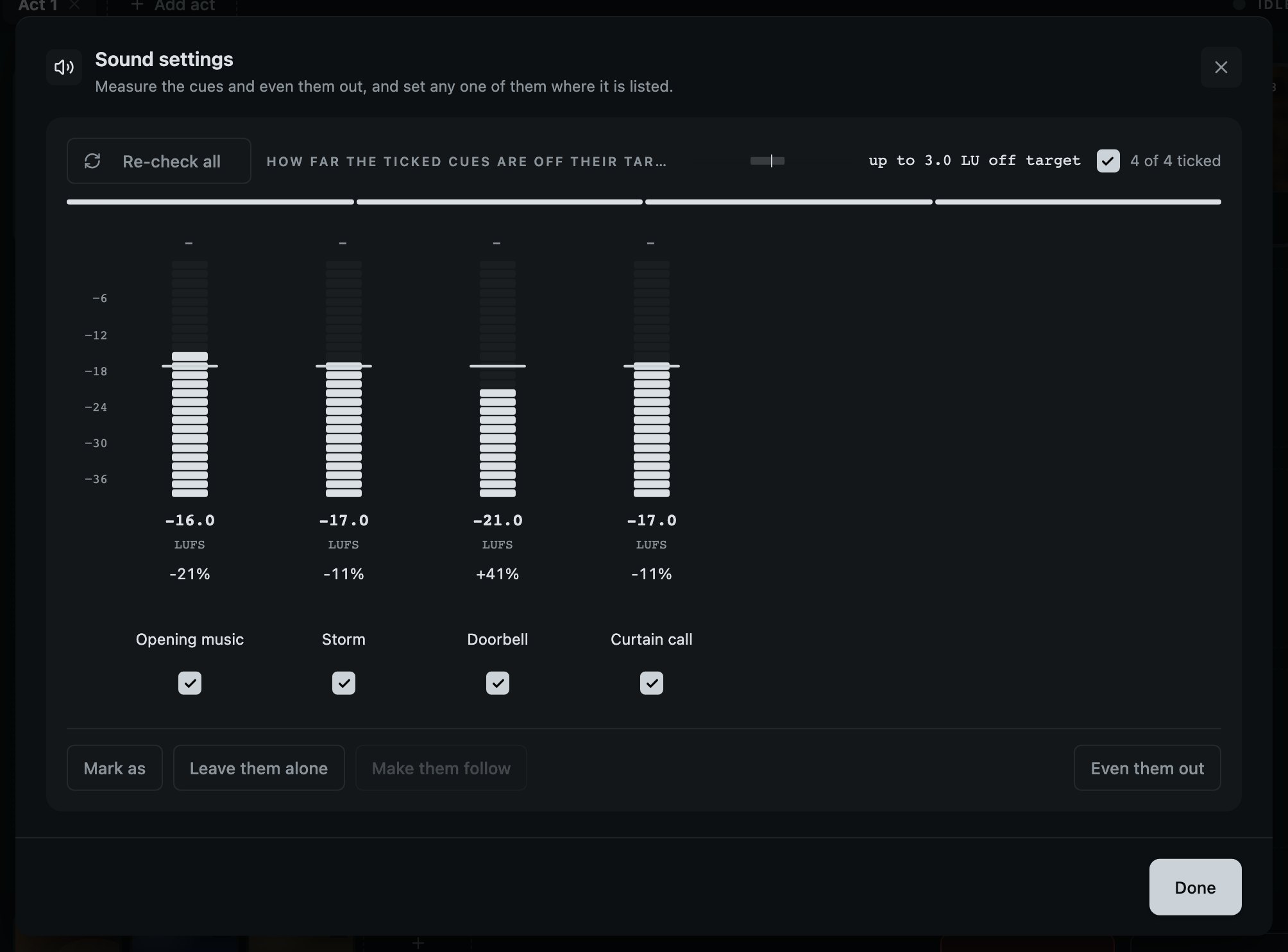
- 1Re-check all: measure every cue again, one file at a time. While it works it says Checking 2 of 5, with the level meter lighting its bars where its icon was.
- 2How far the ticked cues sit from where each kind should, drawn as a spread. Even them out pulls it into one line. Beside it, how many are ticked, and the box that ticks them all.
- 3Each cue is a strip on the desk, its level a meter's lights, lit up to where it sits, with the line its kind aims at across it. The last lights are amber where its own loudest moment held it back. Under it, its loudness and what evening out would change it by.
- 4Its name. Press it and the cue's own settings slide out beside the desk. The tick under it picks the cue for the buttons, and decides nothing on its own.
- 5The buttons that reach the ticked cues: Mark as, to say what kind of thing they are, Leave them alone, and Make them follow, which puts them back on the show's fades.
- 6Even them out: each ticked cue to where its kind should sit, never past the point where its loudest moment would clip. Under the pointer it shows first where each is going.
Cues arrive from a dozen places at a dozen loudnesses, and this is what stops a rehearsal being spent riding a fader. Every cue is measured the way broadcasters measure, and nothing in your files is changed: Even them out sets each ticked cue's own volume, never past the point where its loudest moment would clip, and one undo puts it all back.
A tick in the list picks the cues the buttons above it reach, and nothing more. Leave them alone is the decision: it keeps the ticked cues out of everything that changes every cue at once, evening out, the show's fades and the show's screen, and Put them back in undoes it. Checking again keeps every cue in the list: each one waits, dimmed, with its last answer until it has been measured again, and Stop leaves the rest for later. Undo is ⌘Z, here as everywhere.
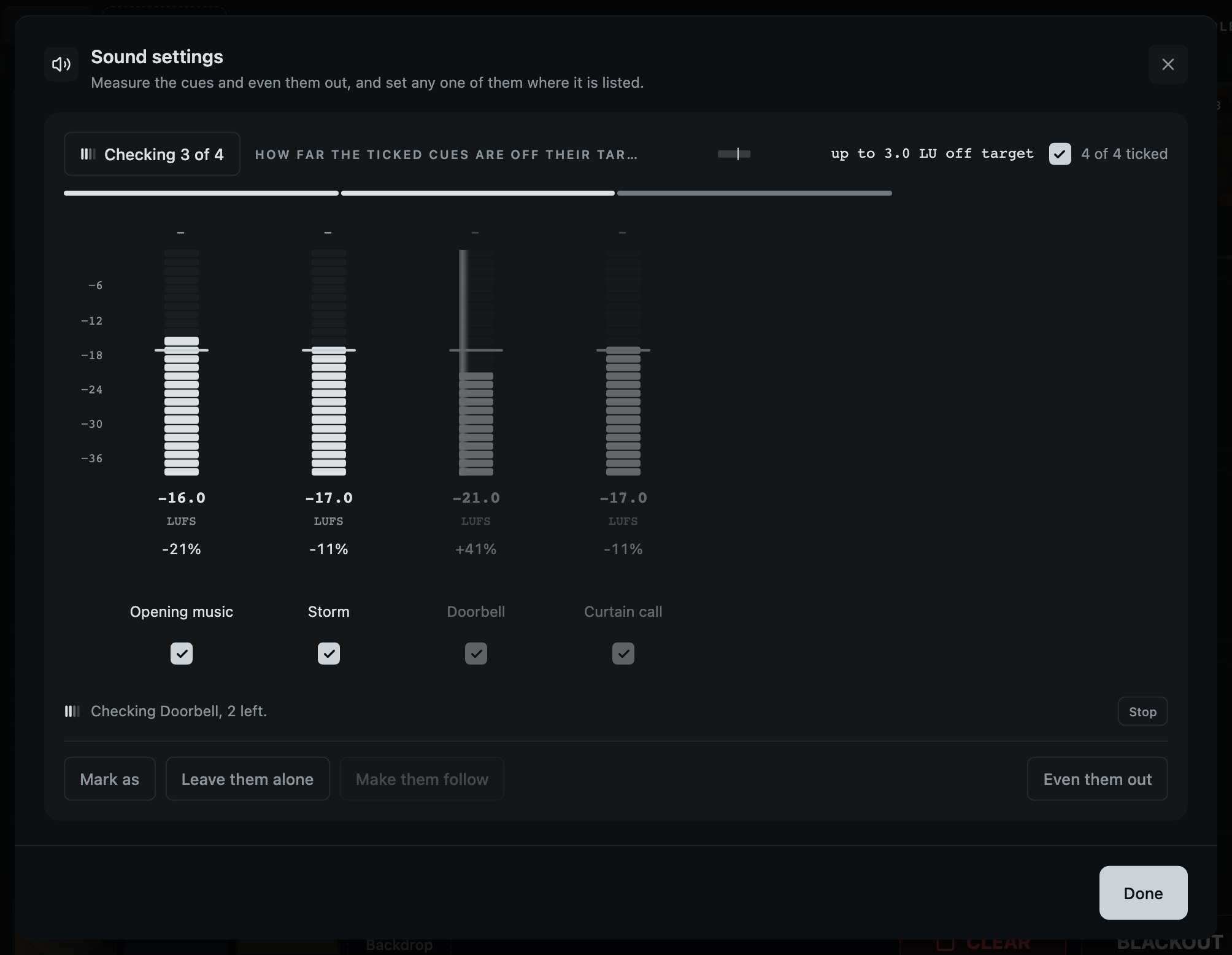
Evening everything to one number would put a gunshot at the level of the rain, so a cue can be marked as speech, music, an effect or ambience, and each kind sits its own distance from the show's level: music a little under, an effect a little above, ambience well under. Raising the whole evening is then one change to the level, and one press of Even them out with every cue ticked. Films are evened out with the rest, and can be lifted past their file's own level as a sound cue can. A file too short to measure the usual way is measured over one moment and marked so, and one with nothing in it loud enough to measure is left exactly where you put it, with a word to say why.
A press on a cue's name slides its own settings out over the side of the window: everything its own window has, its level, its kind, its fades and how it plays. Save keeps what changed. Cancel, Esc or a press on the rest of the window puts it back, and Sound settings is left as it was, with its list where it was.
The show's own level, its fades for sound cues, their shape and Audio output are in Settings, under Sound. Loudness is where a spoken line sits, Louder, Standard, Quieter or a number of your own, and everything else is set from it by what kind of thing it is; once the show says any cue is a kind of anything, how far each kind sits from that level is a row of numbers over the desk, with Back to standard beside it. Fade defaults are what a sound cue with no fade of its own uses, and a change reaches those cues at once; Fade shape is Even or Straight. A film's sound comes and goes with its picture, over the fades under Screens.
Everything goes wherever Audio output says, a film's sound included: it is played the way a sound cue is, at its own level and over its own fades, and moves when the output moves.
The show goes back to the device it was put on. While the console runs, a device is followed by the Mac's own record of it, so an interface pulled out and plugged back in is the same interface. One chosen before it is plugged in is kept, and the show goes to it the moment it is. Settings knows devices by name, so two interfaces with the same name are one choice there. System default means this Mac's output as it was when the show was put there, so headphones plugged in in the wings do not take the show with them. Changing the output while cues are sounding moves them over five milliseconds, with no click, and stops nothing.
If the interface the show plays through is pulled out, or stops answering, what happens depends on whether the show is on. Before the first cue reaches the stage, and after Leave show mode, the show plays through this Mac instead, through headphones if they are in, so somebody building or rehearsing goes on hearing the cues, and it goes back to the interface the moment it is plugged in. If the show is already on this Mac's own output when the first cue reaches the stage, it stays there until the interface is back. During a show it keeps time without a sound: nothing comes out of this Mac, a film's sound included, every cue goes on in time, and when the interface is back the show plays through it again on its own, from where the scene has got to. To have the show carry on through this Mac during a show too, set If the sound device goes to This Mac, in Settings, under Running a show.
Either way a line over the running order says what happened, and while the show keeps time it says how to play through something else meanwhile: pick it in Settings, under Sound, which says the same in one line under Audio output, naming the device: "Scarlett Solo 4th Gen" is not connected. The show keeps time without a sound until it is. Plugged in and not yet playing, it says it is plugged in and not playing; with another device playing the show meanwhile, The show is playing through "MacBook Pro Speakers" until it is. The line goes by itself once the show is back where it was put. The device the show was put on stays in the dropdown as Scarlett Solo 4th Gen (not connected) until it is back, and a device picked there that will not play says why, in red, in that line's place. A connector that only blinks, or a lid closed and opened, is found by counting what the device takes, and the sound goes on from where it stopped, with a line to say for how long it stopped.
13
Before the house opens
A column that keeps asking whether tonight is going to work.
Half an hour before an audience comes in, the questions are always the same. Is every file still where it was? Is the projector plugged in, and is it the audience's? Which output is the sound going to? Is there room on the disk? A row at the foot of the column down the left asks all of them, all the time, and answers with one mark, the worst of what it found: a red cross if anything would stop the show, whatever else is fine, an amber triangle if something is worth a look, and a green tick when everything is. It looks again whenever something in the show or on the Mac changes, and every minute besides. Its name is the answer: Show ready, or Show not ready when something would stop it, Checking before its first answer and while Check again is reading out, and Show mode once the show is on. The looks it takes by itself change the answer in place. The line under the name says how many things would stop the show or are worth a look, or when it last looked. The words are one colour whatever the answer is; the mark carries it, because a red cross is found faster than a red word and two of them saying the same thing is one thing said twice. Press it for the whole list, with the same mark beside every line.
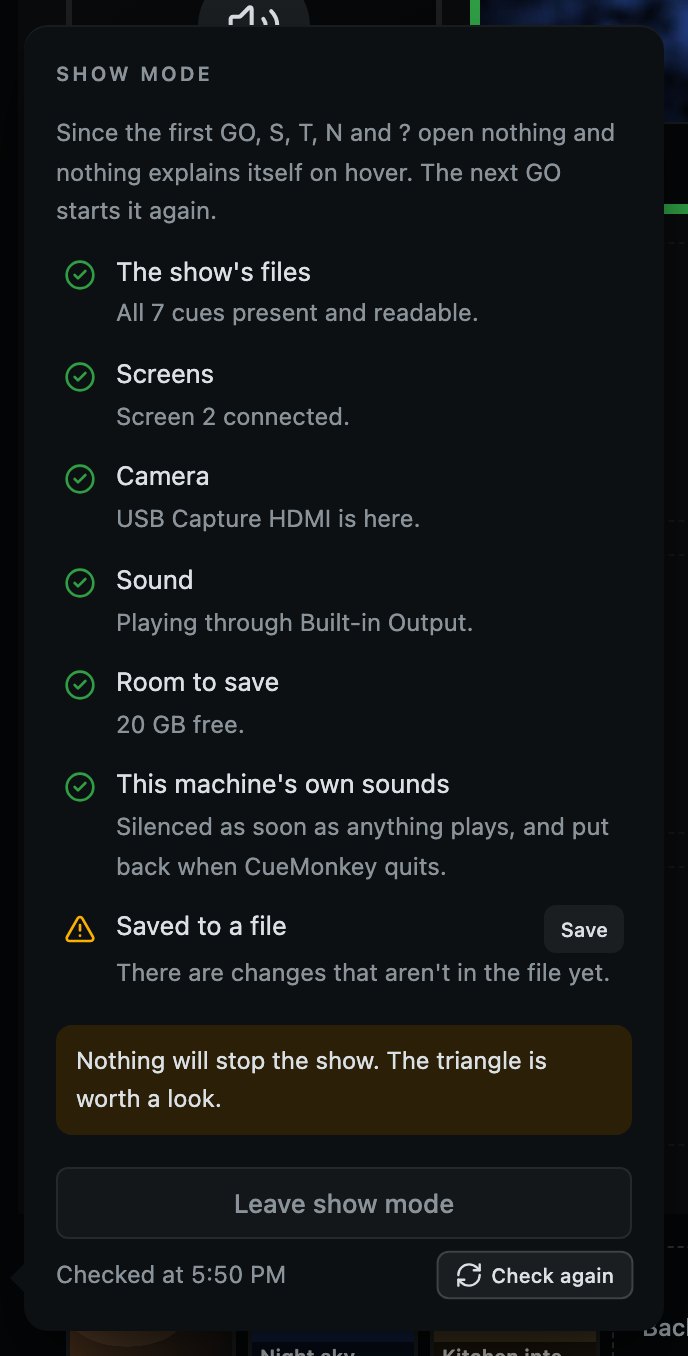
Six lines are there for every show, and the others come only when there is something to say: a camera in the room, a standby Mac, a Mac set to play the show itself if the interface goes, Clear set to cut, a Blackout that fades.
- 1
The show's files
Every cue opened and read, not just looked for. A file that has been moved, renamed or cannot be read is found here rather than at the moment it should have played, and would stop the show. An empty file, or one still coming out of a show file you have just opened, is worth a look and never a stop. Every sound cue's file is also asked of the sound engine itself. One it cannot play at all would stop the show, as a missing file would, and is named: "In a form the sound engine cannot play, so it will play nothing: Rain." One it plays only in part is worth a look: "In a form the sound engine plays only in part, so it will not sound as it should: Wind." Either way the line says what to do: "Use Replace the file… on it, which keeps its place and starts its settings afresh, and pick the same sound again: it is converted as it comes in." Films still getting their sound are worth a look, "Still getting the sound out of: Opening.", and so is a film whose sound could not be read, which is sent to Replace the file… with a copy of the film whose sound plays.
- 2
Screens
Which screens this Mac can see, whether the ones your cues and the camera play on are among them, and whether any of them is for the audience. The camera set in its own settings to a screen that is not here tonight, or not the audience's, is worth a look rather than a stop, because it would play in the small window on this Mac and a hand that puts it up sees where it went. A show with pictures and no screen for the audience would stop here: a laptop with nothing plugged into it still has a display. So would the console where the audience can see it, on a screen marked for them or mirrored onto one. Mirrored onto a display nobody has marked, it says so only for a show with pictures: as a question while the pictures have a screen of their own, and as a stop when the mirroring leaves them nowhere to go but this Mac.
- 3
Camera
Only when this room has a camera. Whether it is plugged in, and whether this Mac lets CueMonkey see it. Never a stop: a camera that has gone takes the picture off one screen and nothing more.
- 4
Sound
Which output the show is playing through, by name. Red when that is not the one it was put on, or it is not connected, or the show is keeping time without a sound. A rehearsal that ran through the laptop speakers and a show that should be going to the desk look identical until somebody asks.
- 5
Standby
Only when this Mac is paired with a standby Mac or stands by for one. Whether the other Mac is following, whether its show is the same, and how far behind it plays. Worth a look at most, never a stop: see A standby Mac.
- 6
If the sound device goes
Only on a Mac set to play the show through itself if the interface goes. Worth a look, so whoever runs the show tonight knows the room may hear the laptop.
- 7
Clear
Only when this Mac is set to cut. Worth a look, because a setting made in September has to name itself to whoever is running the show tonight.
- 8
Blackout
Only when Blackout fades. Worth a look: the screens take that long to go dark.
- 9
Room to save
How much disk is left, and a stop under a hundred megabytes. A save that fails halfway through a show is the worst way to find out.
- 10
This machine's own sounds
Whether CueMonkey will take the Mac's alert volume down when the show starts, and put it back afterwards.
- 11
Saved to a file
Whether everything you have changed is in the show file. Worth a look rather than a stopper: it says nothing about whether tonight can be played, and nothing here refuses a GO over it.
Every line the console can put right has one button beside it, to the place where it is put right: Replace the file… on the first cue the files line names, Screen settings for the screens, Settings, opened at the part that sets it, for Blackout, for the sound, and for If the sound device goes, Clear and this machine's own sounds, Choose the camera for the camera, and Save. A line that is fine has none, and neither has one that nothing on the console can put right, like a disk that is full or a Mac that will not let CueMonkey see its cameras.
The first GO of the evening walks into whatever the check found. If anything on the list would stop the show, a window says which before the first cue fires, because the row down the side is quiet by design and quiet is exactly what somebody about to press GO is not reading. It never refuses: Go anyway starts the show and does not ask again that evening, and Not yet puts the window away. An operator who knows the projector arrives in the interval, or who is building a show at a kitchen table, is not somebody to argue with.
Nothing here changes anything. It looks, it reports, and it leaves the decisions to you. Press Check again after fixing something and it asks all of it again, one line at a time, so you can watch it look. Once a show is on its heading says Show mode, and it carries on watching. Leave show mode, at the foot of its card, ends show mode by hand: see Running the show.
14
When something goes wrong
What the console does, and says, when a cable, a device or the console itself lets you down.
Anything wrong about tonight is said over the running order, and stays until it is no longer true or you press Dismiss beside it. A screen that is unplugged, has stopped answering or would not go black is said for as long as it is so, and cannot be put away. None of it moves a cue, and none of it takes anything from GO, Clear or Blackout.
- 1
A projector unplugged
Its window is put away with what is on it, and the line says "Screen 2 is unplugged. What was on it comes back when it is plugged in again." The tile still says LIVE, Clear and Blackout still reach that screen, and a film's sound carries on, because it never went through the cable. Plugged back in, the screen shows the show as it is by then, with the film's picture where its sound has got to, and the console hears about it by itself, with or without Screen settings open.
- 2
A screen that stops answering
The line says Screen 2 has stopped answering, and that what is on it now may not be what the console thinks.
- 3
A screen that will not go black
A screen for the audience is covered, black, when the console opens, when it is plugged in and when it is marked For the audience. If the Mac will not open a window over it, the line says "Screen 3 would not go black, so the audience may be seeing this Mac's desktop on it.", with the reason under it, and Try again asks the Mac once more. The console also asks by itself when the screens change. The line goes the moment the screen is covered, whether by Try again, by that asking or by the next picture sent there, and it goes as well when that screen is unplugged or marked Only for me. The console's last resort shows it too.
- 4
The sound interface pulled out
During a show, the show keeps time without a sound, and plays through the interface again the moment it is plugged back in, from where the scene has got to. The line says so, and that you can pick something else in Settings, under Sound, meanwhile. A film's sound keeps time with the rest. Before the first cue reaches the stage, after Leave show mode, and on a Mac set in Settings to play through this Mac if the sound device goes, the show carries on through the Mac's own output instead, and goes back to the interface once it is plugged in. A device that only blinked goes on from where it stopped, and the line says for how long.
- 5
A camera unplugged
Its screen goes to black rather than holding the last frame, and the picture comes back on its own when the cable does. The card says the camera is not here.
- 6
A file gone
The cue says FILE MISSING on its tile and plays nothing, and the check goes red. Put the file back, or use Replace the file… on the cue, which keeps its place and starts its settings afresh.
- 7
The console itself
If something the console draws fails, the window becomes its last resort, "The console stopped working", with Clear, Blackout and GO still there and still on their keys, and Try again to draw the console again. Everything on stage carries on. If the whole console fails, the last resort keeps Clear and Blackout, on Delete and B, and Try again starts the console again with the show where it was.
- 8
After a crash
The next time CueMonkey opens, a card in the corner of the running order says "CueMonkey closed without quitting last time.", with the show back where it was, and offers Show the log and Send a report. Send a report opens a line on the card itself to say what was happening, and Send under it, with no window over the console; Return in that line sends nothing, and Esc closes it. The card goes once the report has gone, or at a press of its cross, and Send, on the Log card in Settings, sends one whenever you want. If this Mac is not signed in, the offer to sign in comes as a row of its own under it, with Sign in, rather than as a window over a show that is being got back, and it goes once the show is on.
Every run keeps a log, on the clock on the wall: each GO, each act, each thing that went wrong. The Log card, in Settings, has Show, which shows it in the Finder, and Send. A report goes only when you press Send, with a line from you about what was happening, from the card after a crash or from Send on the Log card, which opens it in a window. What goes is this run's log and the one before it, as they are: the name of the show, each cue's name and the time it went, the sound devices and cameras it used, and any errors, which can name a file on this Mac. Not the files themselves. If you are signed in, it says which account sent it, so we can write back, and nothing else about your account goes. It is kept on our server and emailed to hello@groovymilk.io through Resend. A report that cannot go says where the log is and who to email.
15
A standby Mac
A second Mac that plays every cue with this one, and takes the show over with one press.
A standby Mac is a second Mac with CueMonkey and the same show open, which follows the Mac running the show: every cue that goes, every cue that starts the next one, Clear, Blackout and Restore, Hold, a level ridden in the player, the armed cue, the act on screen, the backdrops and the camera. It plays all of it itself, on its own sound and its own screens, so if the Mac running the show stops, nothing has to start: one press of Take over on the standby, and the show goes on from where the scene has got to. It copies what came of a press rather than the press, so the check before the house opens, Ignore a second GO and a typed number are decided once, on the Mac with the show. Both Macs need Pro: see Solo and Pro, under Your account.
CueMonkey is half of it. The other half is the room, which has to be able to take its sound and its pictures from the second Mac: a switcher between the two Macs and the projector, or the standby on spare channels of the desk and an input of the projector's own, is the usual way, and moving the cables over by hand works too, only slower. Open the same show file on both Macs: the link carries what happens, not the show or its media, so copy the file across first. Both Macs need one network, and a cable between them is best. Wi-Fi works, and is slower to hear.
Pairing is done once. At the foot of the column down the left, above the check, is a card that says Pair a standby Mac, with Another Mac follows every GO under it. On the Mac that will run the show, press it and choose Wait for a standby Mac: the card waits for two minutes and says how long is left. On the other Mac, press the same card: under Stand by for it lists the CueMonkeys it finds on this network, and choosing one puts six digits on its card, Type 123 456 on MacBook Pro. On the Mac running the show, a card in the corner of the running order says Mac mini wants to stand by for this Mac, with a field for the code. Type the six digits there, and the two are paired; Not this Mac turns it away. No Mac is paired during a show. A pairing is kept, and the two find each other by themselves whenever both are open on one network. A Mac has one standby: pairing another forgets the one before, and Forget, in the card's menu, unpairs them. From then on the card says how the pair is:
- 1
Following · 4 ms
On the Mac running the show: the standby is following, and how far behind it plays.
- 2
Its show is not this one
The standby has another version of the show. It still follows every cue it has, and the check names what differs.
- 3
Not answering for 3 s
Nothing has been heard from the other Mac for a moment. It comes back by itself.
- 4
Not connected
Paired, and not linked now. The two find each other by themselves on one network.
- 5
Standing by for MacBook Pro
On the standby, with how long a message from the other Mac takes under it.
- 6
Mac mini has the show
The standby took over, and this Mac follows it.
On the standby, Standing by sits beside the show's name, and a card in the corner of the running order says Following MacBook Pro, with 4 ms behind · the show matches under it, or the show is not the same, and Take over beside it. When the Mac running the show goes quiet, the card says so as it happens: "MacBook Pro has not been heard for 3 s. If it has stopped, switch the room to this Mac and take over." If the Mac running the show starts again with nothing on stage while the standby is still playing, the standby does not empty its stage to match. The card says "MacBook Pro started again with nothing on stage. This Mac still has the show." and offers Follow it again beside Take over, which brings this Mac's stage to the other one's and follows it from there. A standby that links with cues of its own on stage waits for the same press.
While a Mac follows, GO, Clear, Blackout, Hold and a layer's own stop are not its own: pressed, by button or by key, they do nothing, and a receipt says "This Mac is standing by. Take over to run the show from here." Everything else still works, and a standby can still be edited. Take over is the one way in. It asks nothing and has no key, so nothing brushed presses it, and one press does it all: this Mac has the show, GO, Clear and Blackout answer here, the next GO fires the cue that was armed on the other Mac, and a standby that was silent comes up through its own output where the scene has got to, with nothing started again. The receipt says This Mac has the show, and when the other Mac was last heard. If the other Mac is still running, it follows the one that took over, says so in its corner, and offers Take the show back, which is the same press the other way.
A standby never takes over by itself. A link that has gone quiet is not a Mac that has stopped: a cable kicked out of a switch, or a network that blinks, leaves both Macs running, and a standby that took over then would put two Macs in the room. The box that moves the room to the second Mac is one CueMonkey cannot reach anyway. Somebody in the booth sees what has really happened, switches the room, and presses Take over.
What a standby sounds like while it follows is set on that Mac, in Settings, under This Mac: While standing by, Silent or Plays. Silent, on a new console, keeps every cue in time with no sound until this Mac takes over. Plays sounds through its outputs all along, for a switcher or spare channels on a desk. Its pictures play on its own screens for the audience either way, and reach the room only once the switcher or the projector is switched to it.
The check before the house opens has a Standby line on both Macs, and it is never a stop. On the Mac running the show it says the standby follows and how far behind, and is worth a look when the standby is paired and not connected, when its show is another version, naming what differs, when the standby's own check found something, or when the round trip to it is over 40 ms. On the standby it says This Mac stands by for MacBook Pro, and is worth a look when that Mac is not connected or Clear is set differently on the two, because after a takeover the room hears this Mac's. There the Sound line says Silent until it takes over, rather than calling the silence a fault.
A standby that links during the show catches up by itself, and the Mac running the show says so once. Both Macs stay awake while they are linked. A pairing is never asked about again by the licence, and a rental that ends never drops a link. Pro is two Macs at once, so a Pro account already signed in on a laptop at home moves to the standby when it signs in there: the sign-in window offers that, as it does for any Mac.
16
CueMonkey Remote for iPad
GO, Clear and Blackout in your hand from anywhere in the room, while the Mac does the playing.
CueMonkey Remote is an iPad app that pairs with one Mac running CueMonkey 1.2. It is a second keyboard and a second screen for the console, never a second console: the Mac plays every cue, through its own sound and on its own screens, and the iPad sends it presses. On the iPad are the acts, the layers, the running order of the act on screen with the armed cue marked, the backdrops, the note on the next cue, the player with Hold and Resume, and Clear, Blackout and GO along the foot, GO the biggest, under the right thumb. A tap on a cue arms it and never fires it: GO is the only thing on the iPad that fires a cue. Every press is judged on the Mac by the same rules as its own keys, so Ignore a second GO and the check before the house opens hold for the iPad too. Nothing is edited on the iPad: the show is built on the Mac.
The iPad is part of Pro. On Solo, Connect an iPad says so, and an iPad that asks is told the same; the show still runs from the Mac. A plan that ends during a show never takes the iPad out of your hand: it stays connected until the show is over. CueMonkey Remote is coming to the App Store. Until it is there, there is nothing to put on the iPad, and Connect an iPad has nothing to pair with.
One iPad to a Mac, on the same network: the same Wi-Fi, or a cable from the iPad to the Mac, which is best. Wi-Fi works, and a venue's Wi-Fi can drop. When it does, the show goes on on the Mac, and within a second the iPad says it cannot hear the Mac, so a press that may not have arrived is never taken for one that did. The first time, the iPad asks whether CueMonkey Remote may find devices on the local network, and the Mac may ask whether CueMonkey may accept incoming connections: allow both.
Pairing is done once. In Settings, under Running a show, iPad remote turns it on and off, and says the iPad's card is in the side column: the card is where an iPad is connected. At the foot of the column down the left, above the check, is a card that says Connect an iPad, with GO from anywhere in the room under it. Press it, and the remote turns on if it was off: the card says Waiting for an iPad, with how much of two minutes is left. On the iPad, open CueMonkey Remote: under Choose your Mac it lists the CueMonkeys it finds on this network, and asking this one puts six digits on the iPad, Type this code on MacBook Pro. On the Mac, a card in the corner of the running order says iPad Air wants to connect, with six places for the code. Type the six digits there, and the iPad is connected; Not this one turns it away. A code typed wrong says how many tries are left. No iPad is paired during a show. A pairing is kept, and the iPad comes back by itself whenever both are on one network. From then on the card says how the link is:
- 1
Connected · 6 ms
The iPad is connected, and a press takes this long to reach the Mac and come back.
- 2
Back · 6 ms
For five seconds after a link that went quiet is heard again.
- 3
Not answering for 3 s
Nothing has been heard from the iPad for a moment. It comes back by itself.
- 4
Not connected
Paired, and not linked now. It connects again by itself on the same network.
- 5
iPad remote is off
Turned off, on the card or in Settings. Nothing on the network reaches this Mac, and the iPad is kept for when it is on again.
The card's menu says how long the iPad has been connected and how its battery is. Use a different iPad… waits for another, and forgets the one before only once the new one is let in, because a Mac has one iPad. Turn off the iPad remote stops anything on the network reaching this Mac. Forget iPad Air unpairs it, and asks first during a show. Forget and make a new key, in Settings beside iPad remote, is for a Mac whose disk may have been copied: it forgets the iPad, and every iPad has to ask again.
The iPad and the Mac's keyboard are two hands on one console, and neither locks the other out. An iPad that joins after the first GO is said once, over the running order. While an iPad is connected, and for five minutes after it goes, the Mac stays awake whatever Keep this Mac awake says, though a MacBook with its lid shut and no screen plugged in sleeps whatever any program asks. Keep CueMonkey Remote in front on the iPad, which does not sleep while it is, and Guided Access, in the iPad's own Settings under Accessibility, keeps it there for the show.
17
Saving and sharing a show
One file, with everything the show plays inside it.
Press Save. What you get is a single file ending in .cmshow, and it is the show, not a description of one: every sound, every video, every image, every fade and every screen setting is inside it. Put it on a memory stick, open it on any other Mac with CueMonkey, and it plays. Nobody has to find anything.
From CueMonkey 1.0 on, the show file is a promise. A show saved by 1.0 opens in every later 1.x with everything in it: every cue in its place, in its act and on its layer, every level, fade, trim, note and follow, and everything set in Settings, Sound settings and Screen settings that belongs to the show. A show saved by a later version and opened here keeps what this version does not know: saved again, it is written back with all of it, and a cue of a kind this version cannot play is named when the show opens and kept where it was. So a show handed between two booths on different versions loses nothing. And every show any earlier CueMonkey saved opens in this one.
Print the running order…, under the arrow beside Save, prints a sheet for the stage manager on upright paper: every act, and every cue in order, under No., Cue, Type, Screen, Length and Notes. Notes is left empty, for a pen: a cue moved in the tech, a standby called a line earlier. A cue's own note is printed small under its name instead. Every cue's length is there, and one CueMonkey has not read yet, in an act nobody has opened, is read before the print window opens. The act's backdrops are named under it, and the sheet ends with a line for Checked by and one for Date. With more than one layer each layer has a table of its own, numbered the way the console numbers it, so the stage manager's cue 12 and the operator's cue 12 are the same cue. The Mac's print window is also where Save as PDF is, and it works before the show has a file of its own.
A show carries its videos, and videos are big: ten films of two gigabytes make a file of twenty. Save a light copy…, under the same arrow, writes a second file with the videos re-encoded to 1080p, which is all a projector shows anyway. It says what the show weighs and about what the copy will weigh before it begins, works through the videos one at a time with a Stop beside it, and never touches this show or the files it plays. Hand the light copy over and keep the original.
Save a locked copy…, under the same arrow, is for handing a show over to be run as it is: to a deputy, a touring venue or a school. It writes a second file that opens and plays on any CueMonkey with Locked beside its name, and nothing in it can be changed: a press that would change something says the show was handed over locked and does nothing. What belongs to the Mac it is on still changes, the screens, the sound device and Settings, and the fader in the player still rides a cue while it plays, without writing it into the show. Your own show stays open and unlocked in its own file, and there is no unlock, so keep that file. The lock is a mark in the file, to keep a show from being changed by accident, not a lock against somebody who means to, and a CueMonkey older than 0.5.0 opens the file to be changed. Saving a locked copy is part of Pro; opening and playing one is not: see Solo and Pro, under Your account.
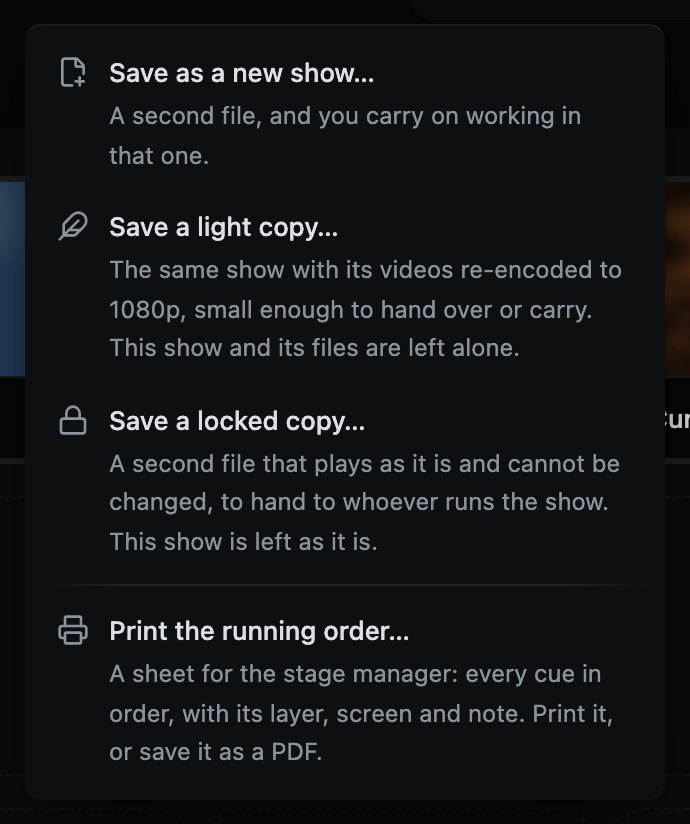
- 1A second file, and you carry on working in that one. This is how you start next year's run from this show.
- 2The same show with its videos made small enough to hand over or carry. This one, and the files it plays, are left alone.
- 3A second file that plays as it is and cannot be changed, for handing a show over. Yours stays open and unlocked.
- 4The running order on paper for the stage manager, or as a PDF. It works before the show has a file of its own.
The file looks after itself otherwise. Saving appends, which is what makes saving a twenty gigabyte show quick, and it is written out fresh on its own once a quarter of it is weight nothing needs any more. There is nothing to press and nothing to know about it. A cue whose file is nowhere on this Mac never stops a save: it is kept in its place with everything set on it and no file, and the console names it afterwards. Replace the file… gives it a file and keeps its place, but starts its settings afresh, so the level, the fades and the note have to be set again. Refusing the save would lose everything else to spare one file.
Opening a show is asked about the way starting a new one is. New show, Open a show, a show file double clicked in the Finder and going back to an earlier version are one thing. New show and going back always ask. Opening a show asks when there is something to lose: work that is in no file, something on stage, or an evening under way. With work to lose the answers are Cancel, Don't save and Save first, in one row, and Return presses Save first, the one that is painted; it goes on only once the file is written. Going back to an earlier version never offers Save first, because the show as it is now is kept beside the copy. The show being left is kept in Earlier versions whenever it has cues in it or work that is in no file, and if that copy cannot be written nothing is replaced. A question nobody at the console asked for has Cancel ready under the space bar, because the space bar is GO.
A show file opened from the Finder after the first GO, or with anything on, or with a window up, never puts a window over the console. It waits in a row over the running order that names it and says nothing on stage has been touched, with Open it beside it, which asks when it is pressed; its cross forgets it.
A show you open can be played from the moment it is on the console. Its files come out of the show file in running order, so the first cue is out first, and each cue says Unpacking until its own file is out. A GO on a cue whose file is not out yet plays nothing and says it is still being unpacked, and the check calls a cue still unpacking worth a look rather than a stop. The unpacking carries on after a quit, a crash or an update, and a file that could not come out, because the stick was pulled or the disk was full, is tried again once that has changed.
Separately from anything you press, CueMonkey keeps its own copies of the show while you work, and puts one back on its own after a crash, a restart or a flat battery. Earlier versions, in the toolbar, is where the older ones live.
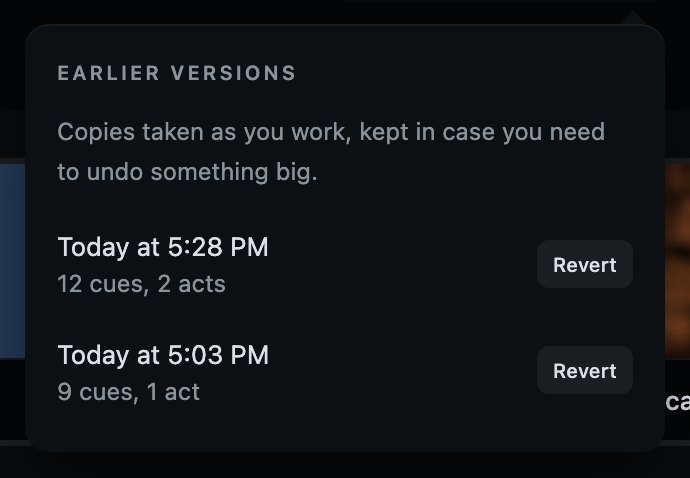
Each one says when it was taken and what was in it. Going back replaces everything on screen with that copy, so it asks first, and playback stops before it happens. This is the answer to "we wiped act two an hour ago", which is a bigger thing than undo is for: undo cannot reach back across it, and it is not meant to.
18
This machine
Settings that follow the Mac rather than the show.
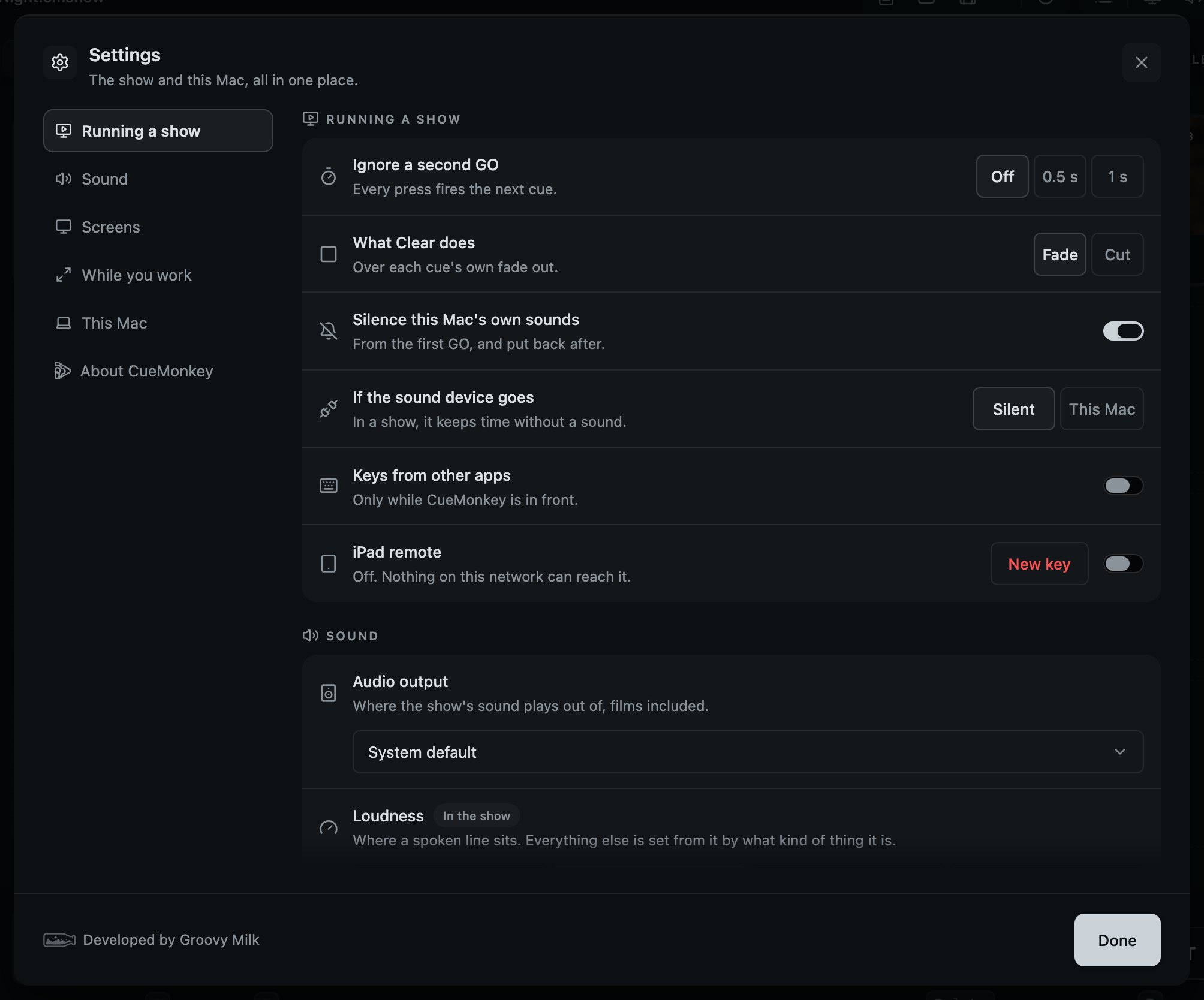
- 1The parts of Settings, in the order an operator meets them. A press brings a part into view, and the part in view is lit.
- 2Ignore a second GO within half a second, or a second: a double tap, or a clicker that bounced.
- 3What Clear does: over each cue's own fade out, or a cut.
- 4Silence this Mac's own sounds from the first cue of the evening, and put them back when CueMonkey quits.
- 5If the sound device goes during a show: keep time without a sound until it is back, or play through this Mac.
- 6Keys from other apps: GO, Clear, Blackout and Hold from whichever app is in front, during a show.
- 7The show's sound: where it plays out of, how loud it sits, and its fades and their shape. Screens, under it, has the fades for pictures and the Blackout fade.
- 8In the show: this one is kept in the show file, travels with it and is undone with ⌘Z. Everything without the mark stays on this Mac.
Everything is on one page, in six parts named down the side in the order an operator meets them: Running a show, Sound, Screens, While you work, This Mac and About CueMonkey. A press on a name brings its part into view, and the part in view is lit, the way the act on screen is. Nothing is behind a name you have to press first, which is also the honest answer to what this console can be told to do: you can read all of it. Sound and Screens are the show's own settings, its sound and its fades, and each row of theirs marked In the show is kept in the show file and travels with it; everything else here belongs to this Mac. Sound settings and Screen settings, in the toolbar, are the tools that measure the cues and line the screens up. Opened from something particular, like the version at the foot of the account menu or a line of the check, Settings opens at the part it is about and lights it for a moment.
While you work is how the console opens and behaves while a show is being built. Its fullscreen is the older kind, which covers the screen in the Space it is in: no title bar and no green button, the menu bar and the Dock hidden until the pointer goes to them, and the small preview of the output free to float over it. Esc never takes the console out of it, because Esc is the console's own key, pressed in the middle of scenes to put a menu away or forget a cue number. It is left here, with the same switch, or with Fill the Screen in the View menu of the Mac's menu bar, which is the way in as well and has a tick beside it while the console fills the screen. Fill the Screen has no key, so nothing brushed takes the console off the screen. While the console fills the screen, macOS takes away the window's own buttons, and the menu bar comes down when the pointer goes to the top of the screen. To quit from there, choose Quit CueMonkey in the CueMonkey menu, or press ⌘Q.
Keep this Mac awake is on unless you turn it off. When the display sleeps every screen goes dark, the projector with them, and a long scene with nothing pressed is exactly when that happens. Off is for a laptop that is only ever used to build shows on.
Running a show is the transport's habits on this Mac: Ignore a second GO, What Clear does, Silence this Mac's own sounds, and If the sound device goes. They belong to the booth rather than the show, so they never travel in a show file. What Clear does set to Cut, If the sound device goes set to This Mac, and Silence this Mac's own sounds turned off each say so in the check before the house opens on any night they are set. Ignore a second GO does not.
Ignore a second GO drops a GO that comes within half a second, or a second, of the last one: a double tap, or a clicker that bounced. Off unless you turn it on, so nothing a show relies on changes by itself. What Clear does is Fade or Cut: see Running the show.
Silence this Mac's own sounds is on as well. When the first cue of the evening reaches the stage the Mac's alert volume goes to nothing, and it is put back exactly as it was when CueMonkey quits, when you press Leave show mode, or when you start a new show or open another. Only the system's own chimes: other apps are left alone. Turned off, a message arriving mid scene is heard by everybody in the room, and the check before the house opens says so rather than leaving you to find out.
If the sound device goes is Silent on a new console: when the interface the show plays through is unplugged or stops answering during a show, the show keeps time without a sound until it is back. Silent holds only while a show is on. Before the first cue reaches the stage, and after Leave show mode, the show plays through this Mac whichever is chosen, through headphones if they are in, so a show being built never goes quiet because a cable came out. This Mac carries on through whatever this Mac plays through during a show as well, from where the sound stopped, which in some rooms the audience can hear. Either way the show goes back to the interface on its own the moment it is plugged in, and a film's sound goes wherever the rest of the show does.
Keys from other apps is off on a new console. Turned on, during a show the console hears Space, Delete, B and H in whatever app is in front, a mixer's window included, and does what it would do in front: GO, Clear, Blackout, and Hold while the player is out. That app gets the key too, so a space typed into one of its fields is a GO here as well, and before the first cue reaches the stage nothing is heard at all. The first time, macOS asks whether CueMonkey may: turn it on in System Settings, Privacy & Security, Input Monitoring. Until then the row says macOS has not allowed it yet. It is the last thing under Running a show.
About CueMonkey is which version this is, What changed in it, and the button that looks for a newer one, which is where the version at the foot of the account menu takes you. The manual is here too, and opens on cuemonkey.app. The copy that comes with CueMonkey, which opens with no connection, is Manual in the menu behind your name. Show me around is here as well: the nine cards a new console opens with, for a laptop that has already had them. On Solo, the one about acts and layers says what Solo builds.
Language, the first thing under This Mac, is the language the console speaks: English, Español, 简体中文, Русский, Українська, Deutsch, Português or Français, each by its own name and with its flag, and nothing else in the list. Same as this Mac, at the foot of the list, follows the languages the Mac is set to, in their order, which is what a new console does, and English when it speaks none of them. Any Spanish is the Latin American Spanish it has, any Portuguese is Brazil's, and Chinese is only simplified. A language chosen here holds whatever the Mac says. It is this Mac's, never the show's, and it takes effect at once, with no restart. A translation that nobody whose language it is has read yet says so under Language while the console speaks it, in its own words: for now that is Spanish, Chinese, German, Portuguese and French.
Every word on the console changes with it but GO, which is GO in every language. CLEAR, BLACKOUT and RESTORE are each language's own word, in capitals, and every sentence that names one says the same word, so the button can be found by the word you have just read. So do CueMonkey's menus in the Mac's menu bar. The log stays in English.
This Mac is the language, While standing by, which is what this Mac sounds like while it follows another (see A standby Mac), Share usage statistics with CueMonkey, the log, which Show shows in the Finder and Send sends as a report, the media unpacked from show files, with the sounds made from films the open show does not use, and putting this machine's setup back to default: the calibration for every screen, who each screen is for, the screen shows go out on, every saved venue profile and the chosen audio output. Your shows are not touched. The two that throw something away, Free up for the unpacked media and Reset for the setup, sit together, away from everything else. Each is red words on a quiet button, the way a button in a window that takes something away always is, and each asks first.
Share usage statistics with CueMonkey is off unless you turn it on. The console asks once, after the first show has played and never during one, and Not now leaves it off and it does not ask again. On, it counts daily totals on this Mac and sends them once a day while nothing is playing: minutes open and playing, GO presses, cues by kind, and the versions of CueMonkey and macOS. Never a show, a name, a file or a time of day. Delete what was shared removes every day your account has sent, from every Mac, and anything kept is forgotten after eighteen months. The privacy notice on cuemonkey.app says what is kept and for how long.
CueMonkey looks for a new version when it opens, every hour after, and the moment a Mac that could not reach anything is given a connection, show or no show, though never in the moment a cue is in the air. When there is one it downloads it by itself, during a show too, because a download sits beside the version that is running and changes nothing anybody can see. Only a press puts it in. While it comes down, a row at the foot of the column down the left, above the check, says Getting 1.0.1, or whichever version it is, with how far it has got under it, 42%, and the level meter beside it lit to the same point. Once it is here the row says Restart to update, with Version 1.0.1 under it. One press puts it in, the row says Putting 1.0.1 in meanwhile, and CueMonkey opens again by itself with your show just as it was; with a cue playing, that press asks one line first, because a restart takes the sound off. While a show is on, nothing is said about a new version at all: the row is not there until show mode ends. Settings has the same thing under About, where Install is fine to press during a show: nothing changes until CueMonkey restarts, it asks whether that is now or later, and Later means the next time you open CueMonkey. If this Mac has no internet when you press Check, it says so rather than pretending to look.
The console cannot be closed by a brushed key. ⌘W and ⌘M do nothing, on the console and on every screen, and the console's own close button, there whenever the console is not filling the screen, quits CueMonkey, the same as ⌘Q, rather than closing a window. A quit while the show is on, from ⌘Q, the Dock, the Mac shutting down or that button, asks once, in a row over the running order rather than in a window: "Quit while the show is on? Everything on stage stops." Leave it is what Esc and doing nothing give; Quit takes a press of its own. ⌘H hides the console and leaves the screens up. However you quit CueMonkey, every sound, a film's included, goes down over sixty milliseconds instead of stopping with a click.
19
Your account
Solo, free on one Mac at a time. Pro, on two. And nothing about you that matters.
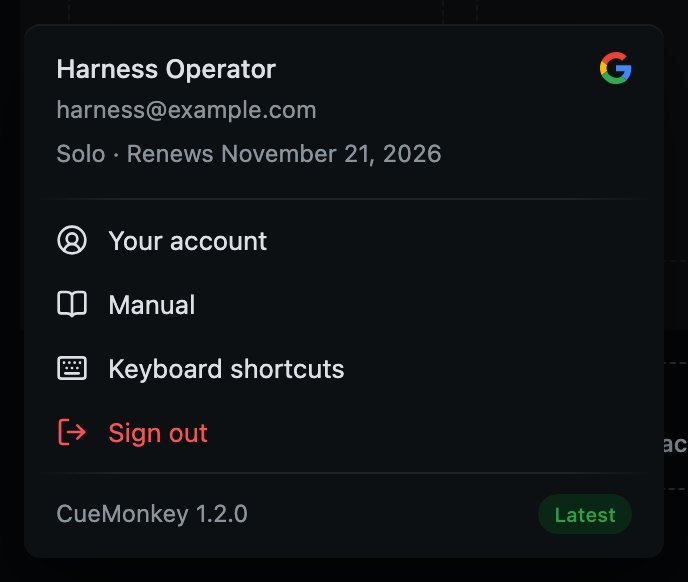
- 1Which way you signed in. For now that is Google: signing in with Apple is coming soon.
- 2Everything else about your account, on the website.
- 3This manual, on this Mac, with no internet needed.
- 4Every key, in a window of its own. ? opens it too while a show is being built.
- 5Sign out of this Mac. Red, the way everything that takes something away is.
- 6Which CueMonkey this is, with Latest beside it when there is nothing newer, New version when there is one, and Restart to update once it is in. Press it for Settings, where the updates are.
Solo and Pro. Solo is free with an account. It opens, plays and changes any show, made on any Mac by anybody, every layer and every act of it, and it grows a show to one layer, one act, one screen for the audience and one saved venue. Pro grows it further. The limits only ever answer a "+": Add layer, Add act, marking another screen For the audience, keeping another venue, Save a locked copy…, Pair a standby Mac and Connect an iPad say they are part of Pro, and See what Pro adds, in the menu behind your name, opens the page that sets the two side by side. Nothing is ever taken out of a show, and a licence never stops one.
- 1
Solo
Free. Every kind of cue, every fade and trim, the camera, evening out, the check before the house opens, the log and eight languages. One layer, one act, one screen for the audience and one saved venue, on one Mac at a time.
- 2
Pro
Up to four layers, as many acts as the show needs, more than one screen for the audience, every venue you play, Save a locked copy…, and two Macs: the one running the show and a standby that follows every GO and takes over with one press. And CueMonkey Remote, GO from an iPad, coming to the App Store.
Which plan this Mac is on is the second word of the name beside the logo, at the top of the console: CueMonkey Solo, the plan in grey, or CueMonkey Pro. Before Pro goes on sale it says nothing, because there is nothing to be on yet. A Pro that ends by itself, a rental or a grant for a while, says Pro until it ends, and resting the pointer on it says until when. It is not a button: the menu behind your name is where a plan is looked at. A plan bought on the website reaches the console at once: as it opens, when it comes back to the front, and at the press that needs Pro.
Pro is rented by the day or by the week, in whole calendar days from midnight to midnight where you are, or owned, with every 1.x update; every rented day that has ended comes off the price of owning it. A rental bought ahead switches itself on when its day comes, with no internet that day, once this Mac has been online after you bought it. A rental that ends in the middle of a show stops nothing that is playing: only adding a layer, an act, a screen or a venue waits for Pro again. Solo's limits begin on the day Pro goes on sale, and until then nothing is limited.
A show on us: once this Mac has run three full shows on Solo, a card in the corner of the running order says Try Pro for one show, on us. It is one free day of Pro, on a day you choose, once per account, with nothing to pay, and it goes back to Solo by itself. Choose the day opens your account on cuemonkey.app, where the day is chosen, and the Pro card that says something is part of Pro offers the same. A full show is judged on this Mac alone, from how long the show ran, how many cues it fired and how much of the running order it covered, and nothing about it leaves the Mac. The card never comes up during a show, and its cross puts it away until another show, a week at the soonest. An account that has had Pro is not offered it.
Solo signs in one Mac at a time, and Pro two at once. Which Mac that is is yours to change, and it takes effect at once. Sign in on the new Mac, and if the account is in use on another, the sign-in window says so, names the Mac it would let go of by the day it was last used, and offers Use it on this Mac instead. One press moves it, and the receipt says which Mac was let go of. Or sign the other one out from the list at cuemonkey.app/account. Either way the Mac that steps aside keeps working until its licence runs out, and the window gives the date: nothing stops a show on it.
On the Mac that was moved away from, a row at the foot of the column down the left, where a new version is said, says Moved to another Mac and Sign in here to move it back. Pressing it opens the sign-in window, with the same one press to move the account back. A version of CueMonkey too old to be given a fresh licence gets a row in the same place, Update to stay signed in, which opens the download page, and the account menu says when the licence runs out rather than when it renews. Neither row is ever a window, neither is there at all once a show is on, and shows play either way.
Letters from CueMonkey, the welcome letter and the invoice for a payment, come in the language your console speaks, and so does what the service says when it turns something down. The console tells your account its language, and which CueMonkey and which macOS it runs, whenever it signs in or renews, so the very first welcome letter, sent before any console has said, can still come in English.
The same menu has this manual, which comes with CueMonkey and opens on this Mac with no signal needed, and the list of every key. Along its foot is which CueMonkey this is; pressing it opens Settings, where the updates are.
Signing in wants the internet once. A licence lasts thirty days with no signal at all, which is the normal state of a booth, and CueMonkey renews it by itself whenever it is open on a Mac with a connection. A licence that has run out never stops a show: what you have always plays. Only once it has been out for a month do adding files and saving wait for a fresh one.
20
Every key
The whole keyboard, in one place.
The keyboard is in two halves, and the line between them is deliberate. Bare keys run the show: one hand, in the dark, without looking. Anything that changes the show itself wants the command key, so a stray press can never edit a running order during a performance.
None of them fire while you are typing in a field. A window that is open has the keyboard until you close it, with one exception: B blacks the screens out from behind any of the console's own windows, because a panic control is never put behind a question. And S, T, N and ? open their windows only while a show is being built; once any cue has reached the stage they open nothing, and say which menu has the same thing, until Leave show mode, at the top or in the check's card, gives them back.
The console has this list too. Press ? while a show is being built, or choose Keyboard shortcuts in the menu behind your name at any time. It describes this Mac: set to cut, its line for Clear says so.
Running the show
- Space
- GO: fires the next cue and moves the playhead on
- B
- Every screen to black, and back again. Works with a window open
- Delete
- Clear: takes the running order off, on every layer
- Delete
- Again, while a sound is still going: it stops there
- ⇧⌫
- Stops only the layer on screen
- ←→
- Moves the playhead back or on, without firing. ↑ and ↓ do the same
- 42Space
- Types a cue number: the next GO arms that cue, and the GO after it fires it
- Esc
- Forgets a cue number half typed, and puts away whatever is open
- ZXCV
- Puts that backdrop up, or takes it down
- ⇧1⇧2⇧3⇧4
- Puts that layer on screen. Fires nothing. Hold ⇧ to see which is which
- ⌥⌘[⌥⌘]
- Puts the layer above or below on screen. Stops at the first and the last
- ⌘1to⌘9
- Shows that act. Hold ⌘ to see which is which
- ⇧⌘[⇧⌘]
- Shows the act before or after. Stops at the first and the last
What is playing
- P
- Opens and closes the player, which follows what is playing
- H
- Holds what is playing, and lets it run on. Only with the player open
The armed cue
- S
- Opens its settings. Not while a show is on
- T
- Opens the trim window. Not while a show is on
- N
- Writes the note the booth sees while it is next. Not while a show is on
- ⌘D
- Makes a copy of it
- ⌘C⌘V
- Copies its settings, and puts them on another
- ⌘⌫
- Deletes it, after asking. Deliberately awkward: no single key deletes a cue
Everything else
- ⌘Z
- Undo. Any change to the show can be undone, fifty steps back; how a screen is hung has Reset this screen and venue profiles instead
- ⇧⌘Z
- Redo
- ?
- The list of keys. Not while a show is on
- ⌘Q
- Quits, and asks once first while the show is on
- ⌘H
- Hides the console and leaves the screens up
- ⌘W⌘M⌃⌘F
- Nothing, on purpose: a brushed key never closes the console, puts it in the Dock or moves it into a fullscreen with a Space of its own